Survey
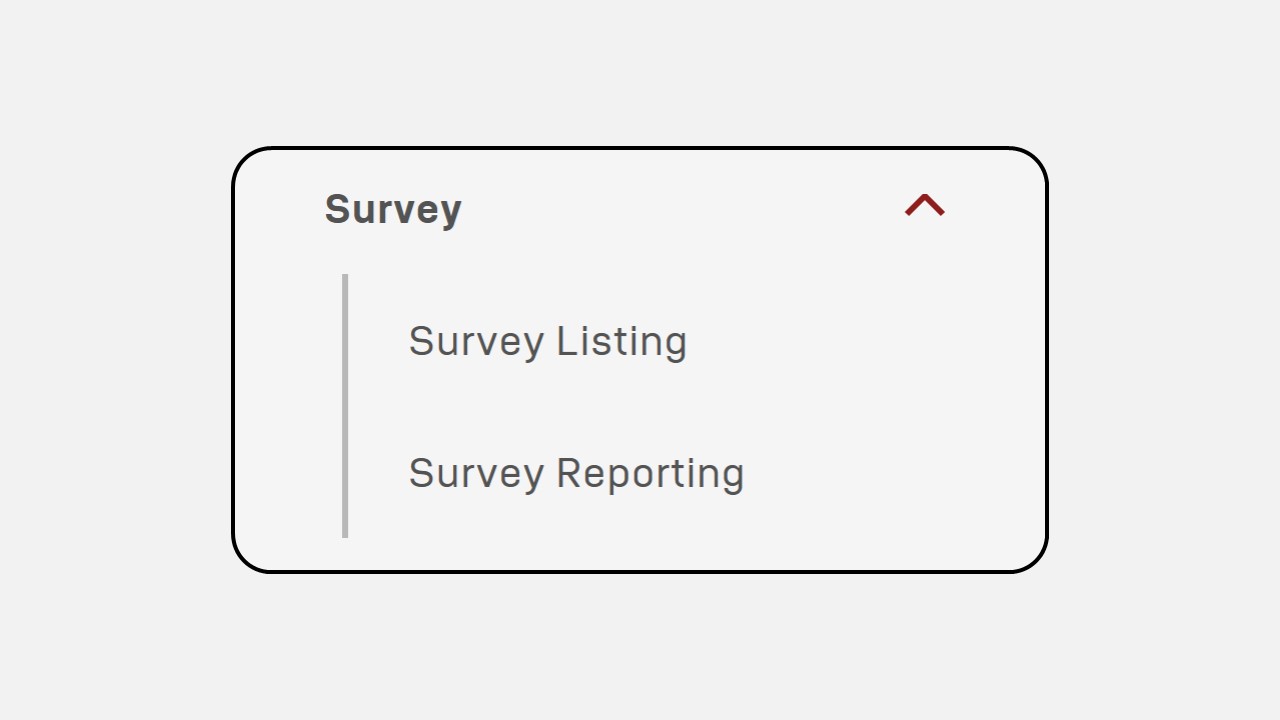
1. Survey Listing
How to Create a Survey :
Click on the Survey Listing menu.
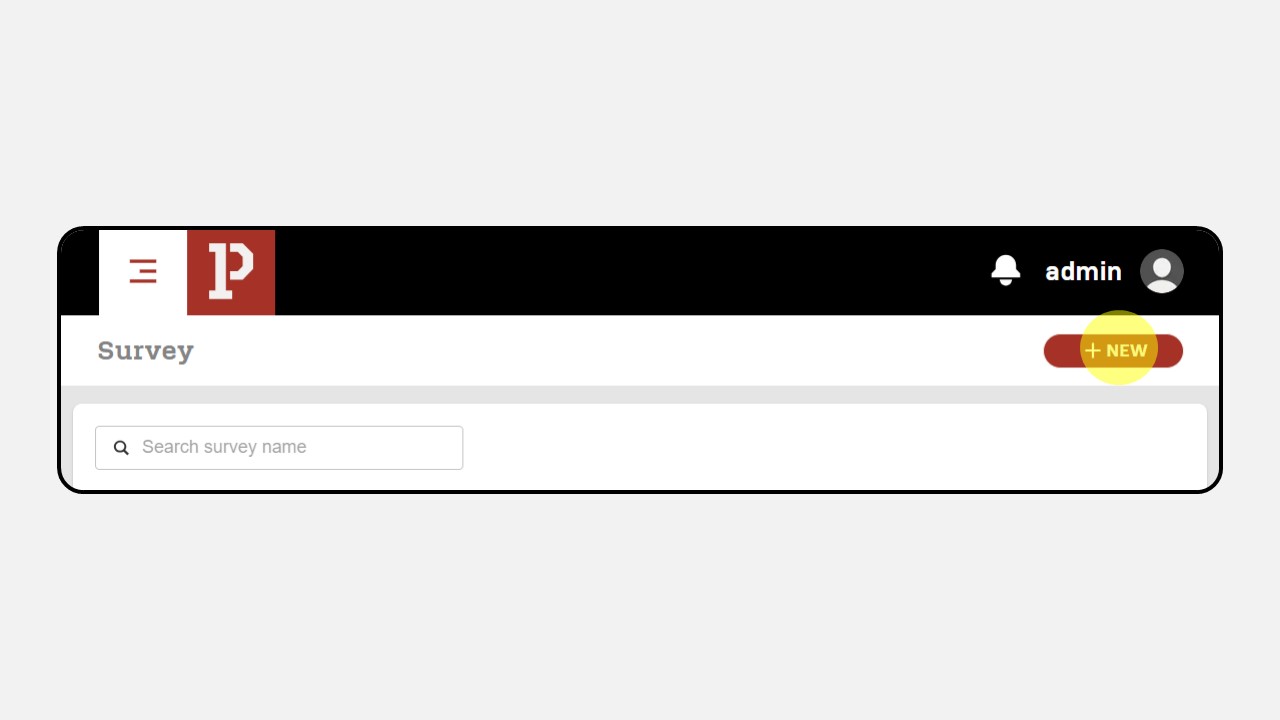
Click the New button to start creating a survey.
Fill in the Survey Name and Description fields.
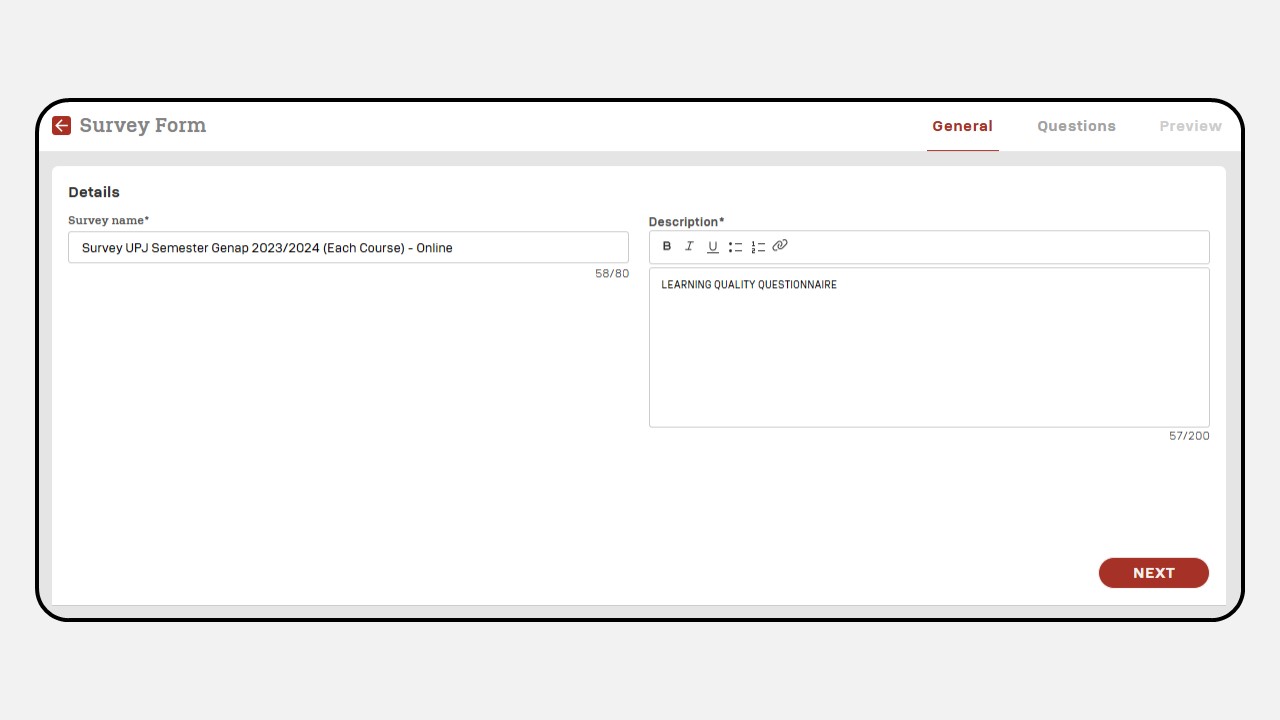
Click Next to proceed, and a new screen will appear as shown below
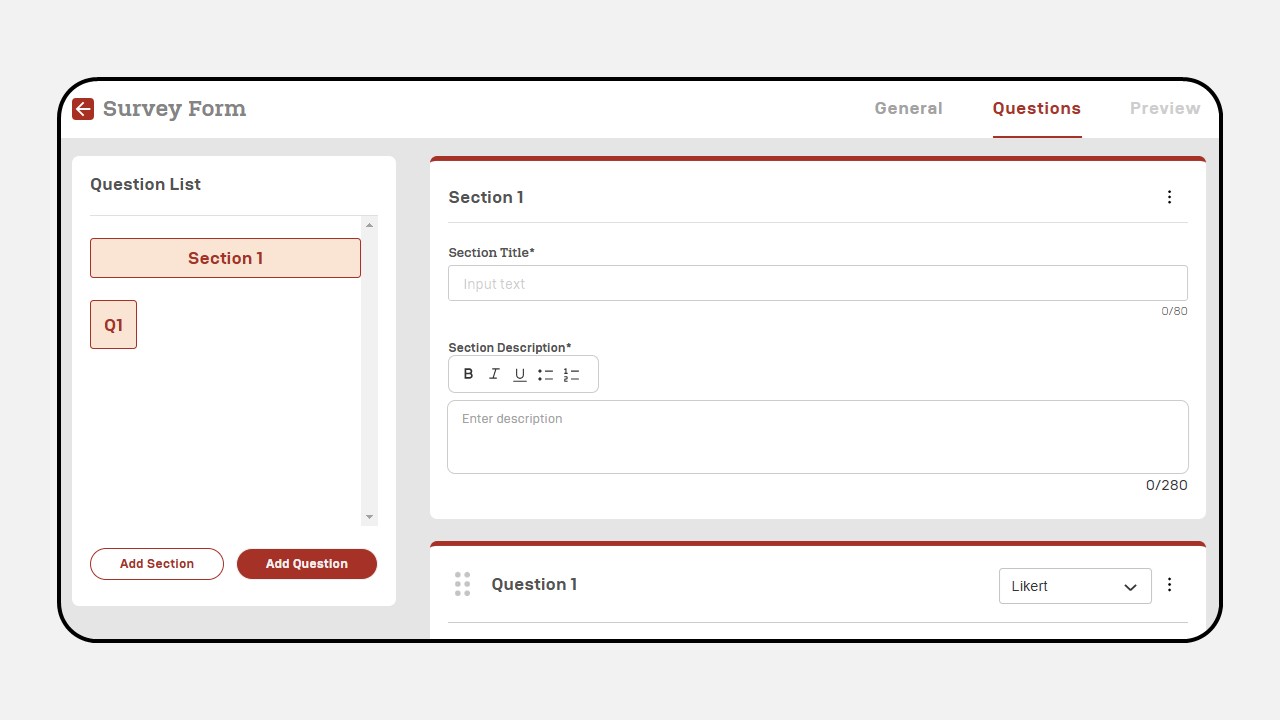
Fill the Title and Description section
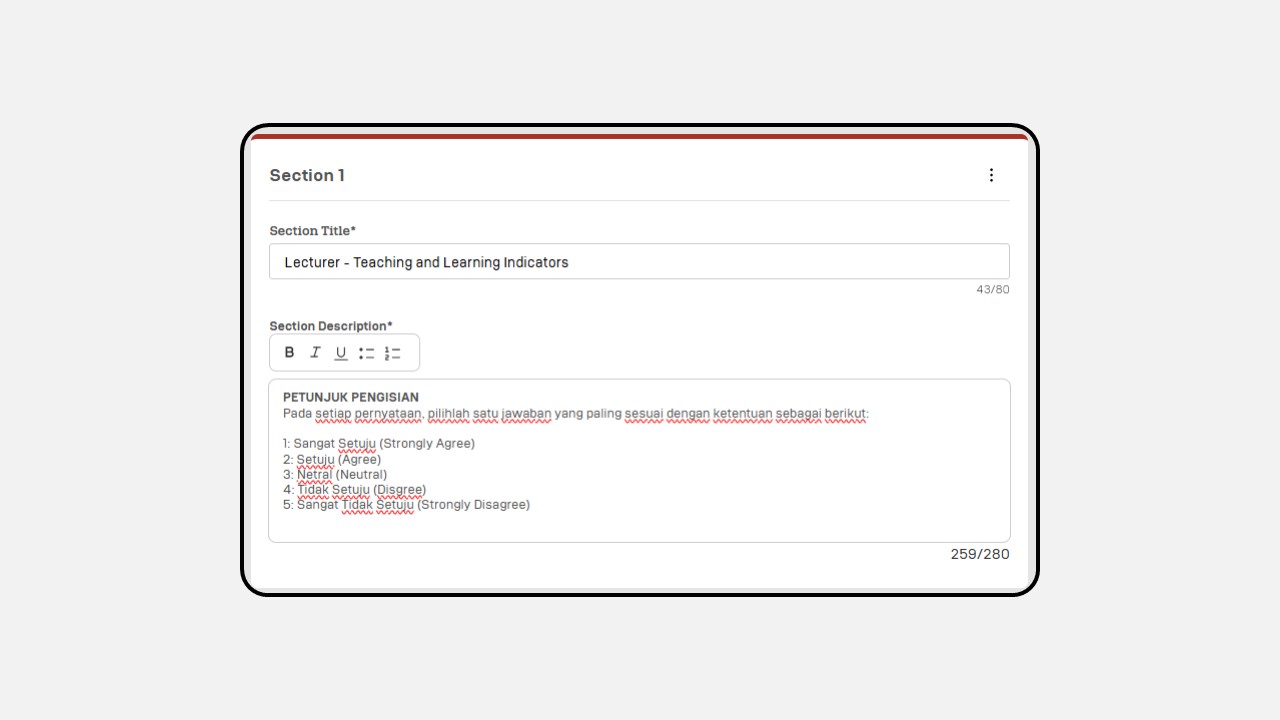
Add your survey questions
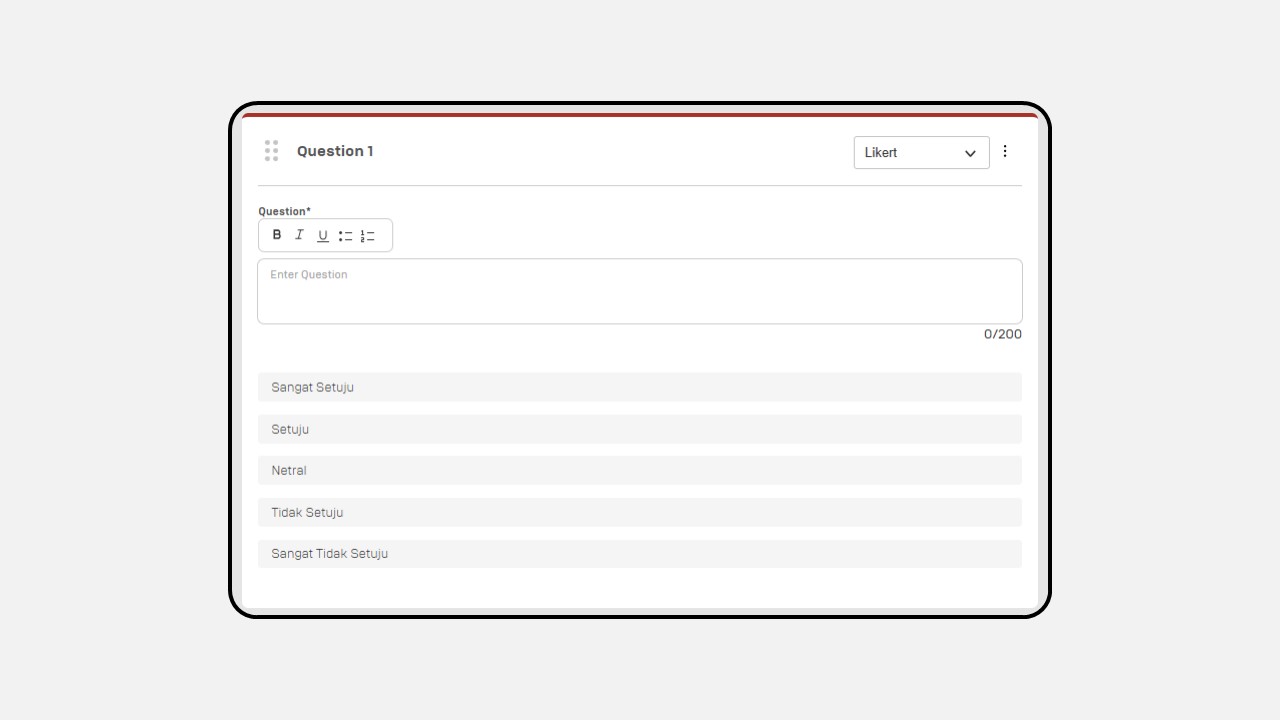
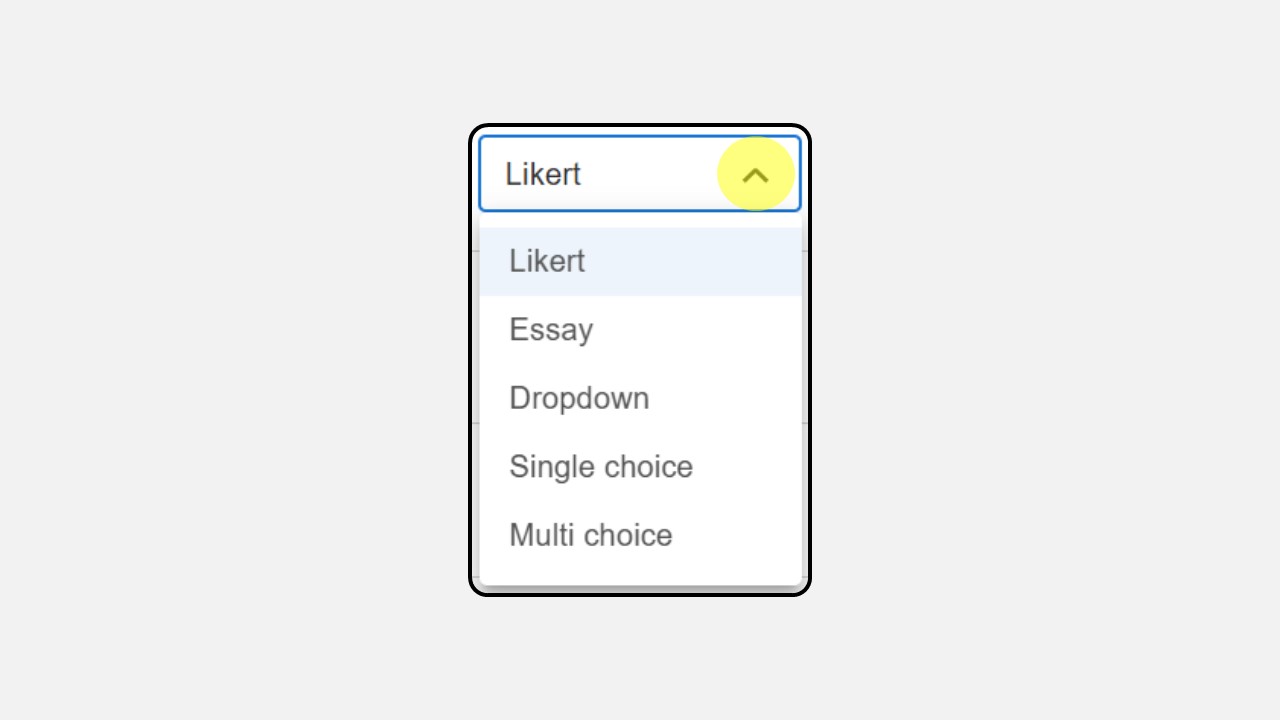
Then select the type of question you want (Likert, Essay, Dropdown, Single Choice atau Multi Choice)
To add a new section, click the Add Section button or if you want to add more questions to a section, click Add Question.
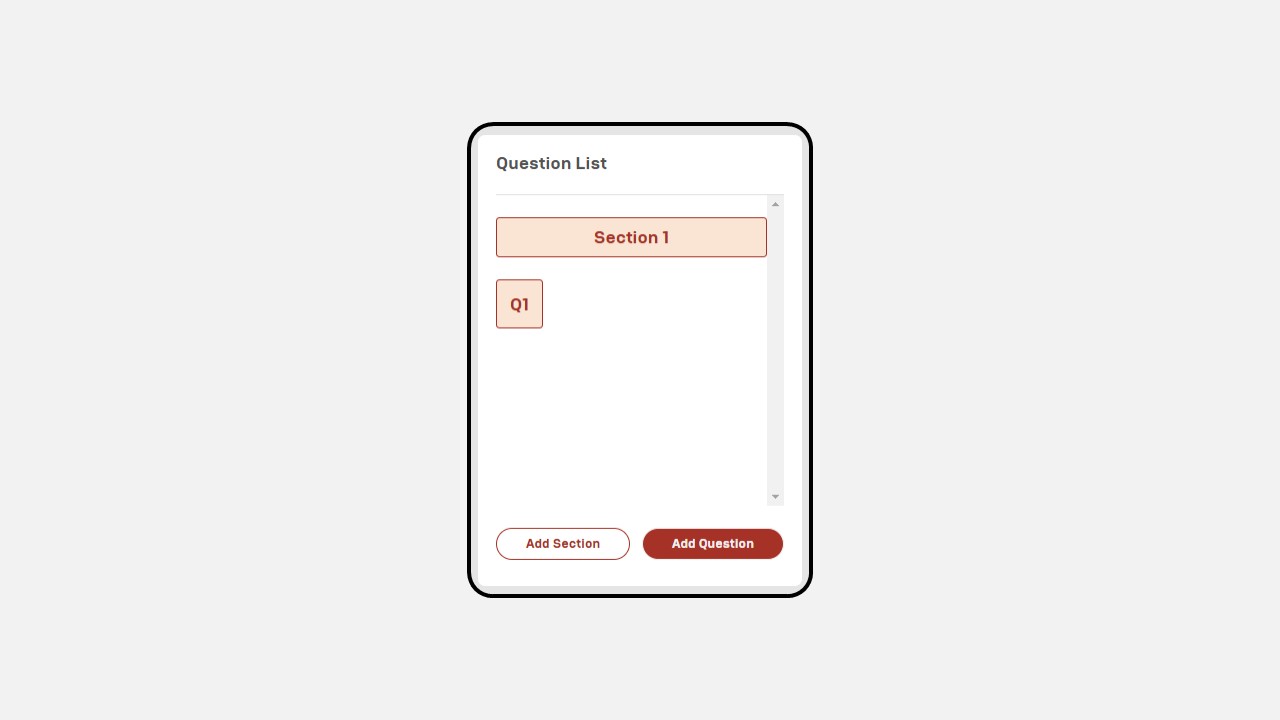
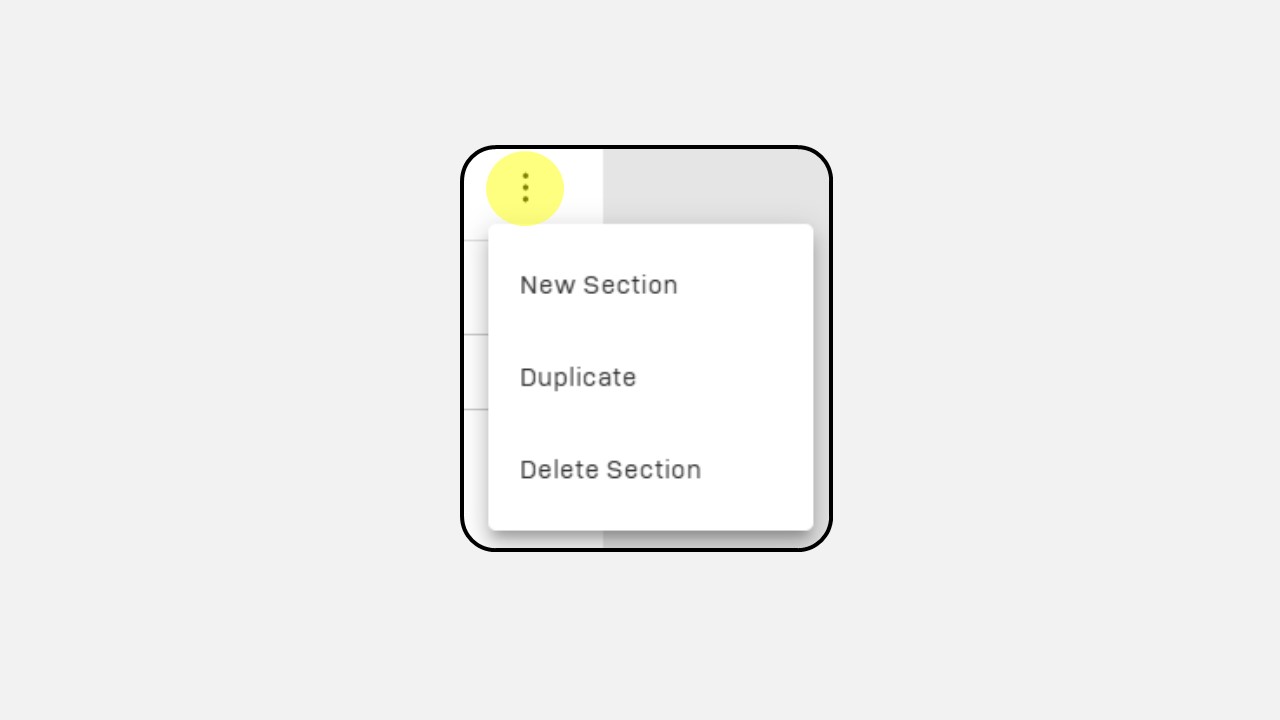
To duplicate or delete a section, click the three-dot button in the top-right corner of the section.
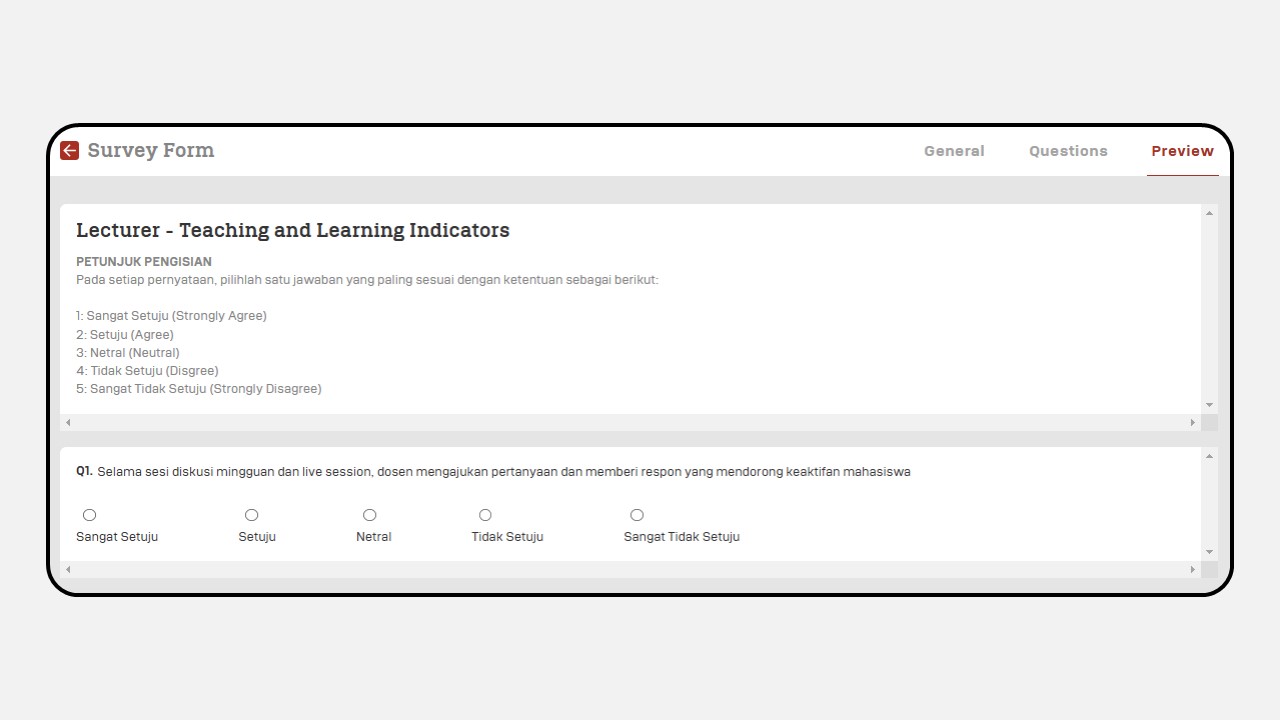
Once completed, click Save & Preview

You can review the survey in Preview Mode
2. Survey Report
How to Export a Survey Report :
Click on the Survey Reporting menu.
Then the following display will appear as shown
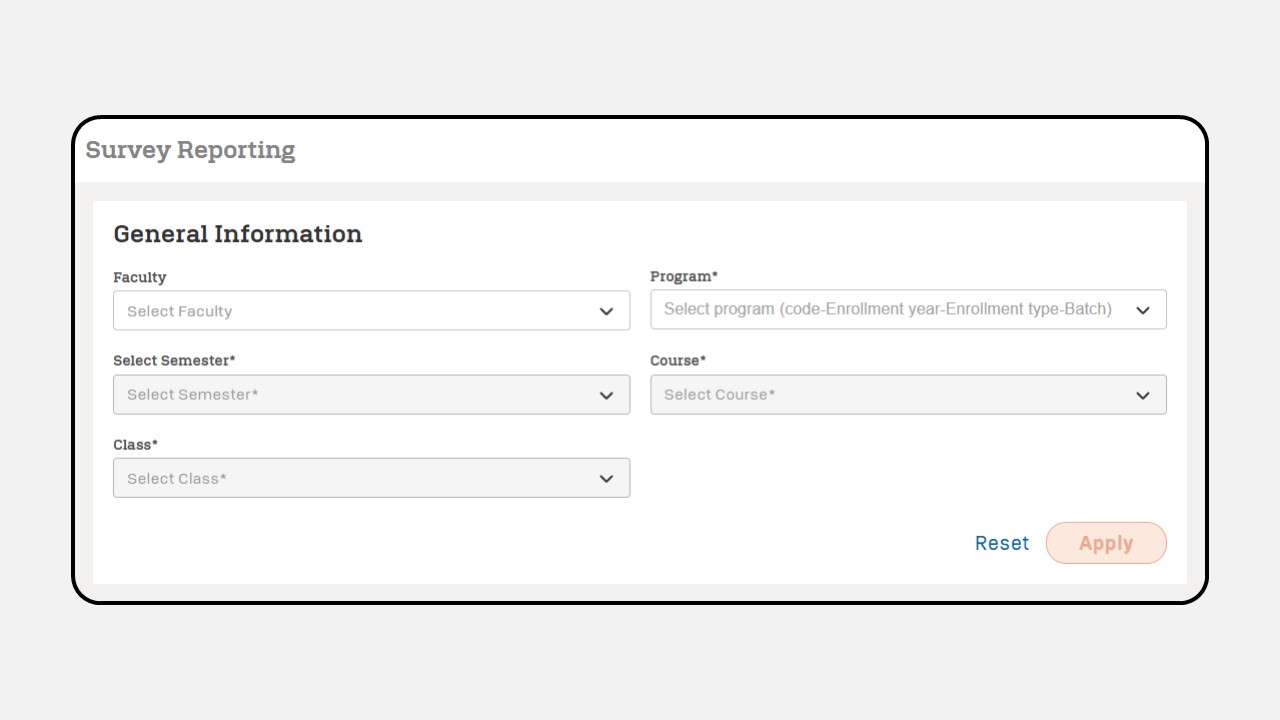
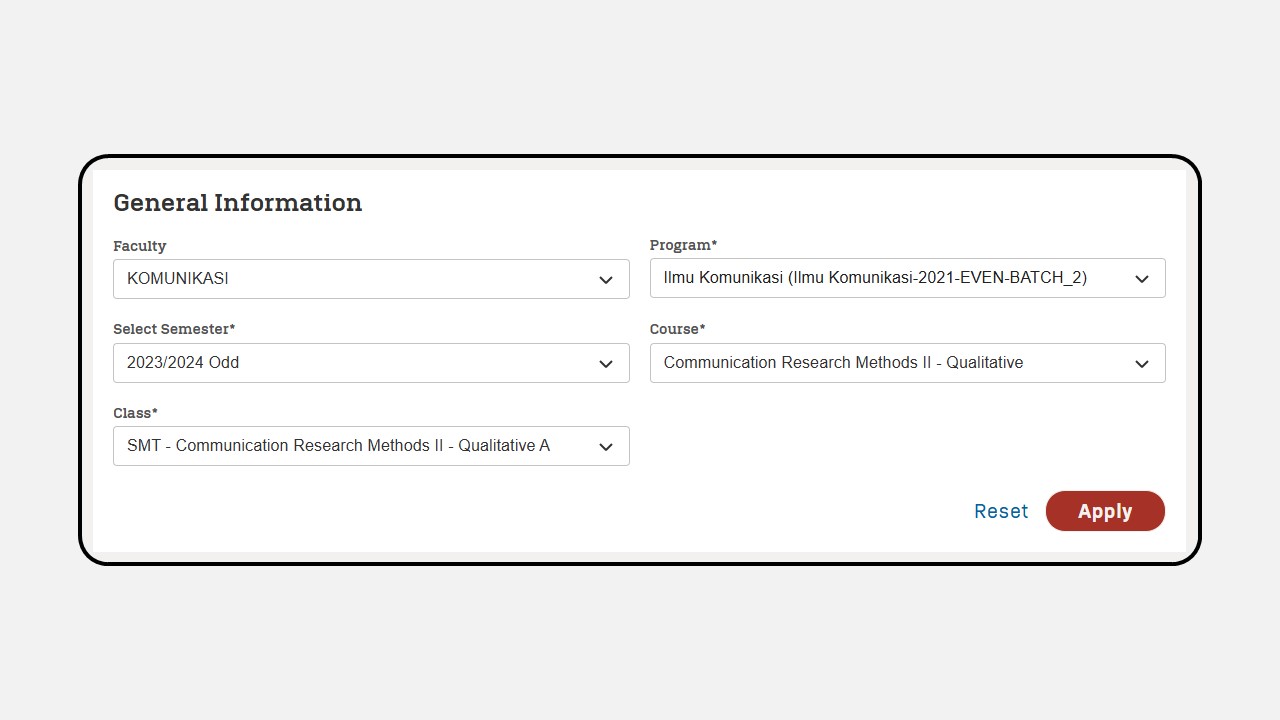
Complete the General Information fields, then click the Apply button
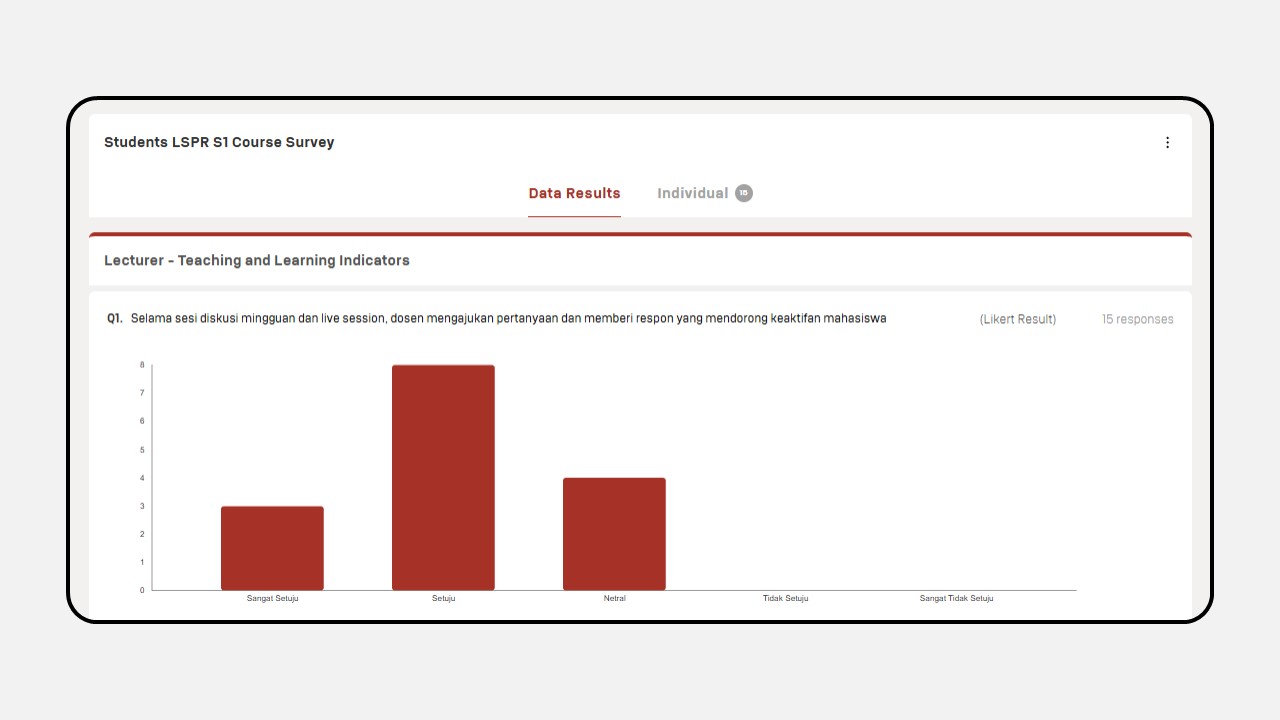
Then the survey data (Data Results) will appear
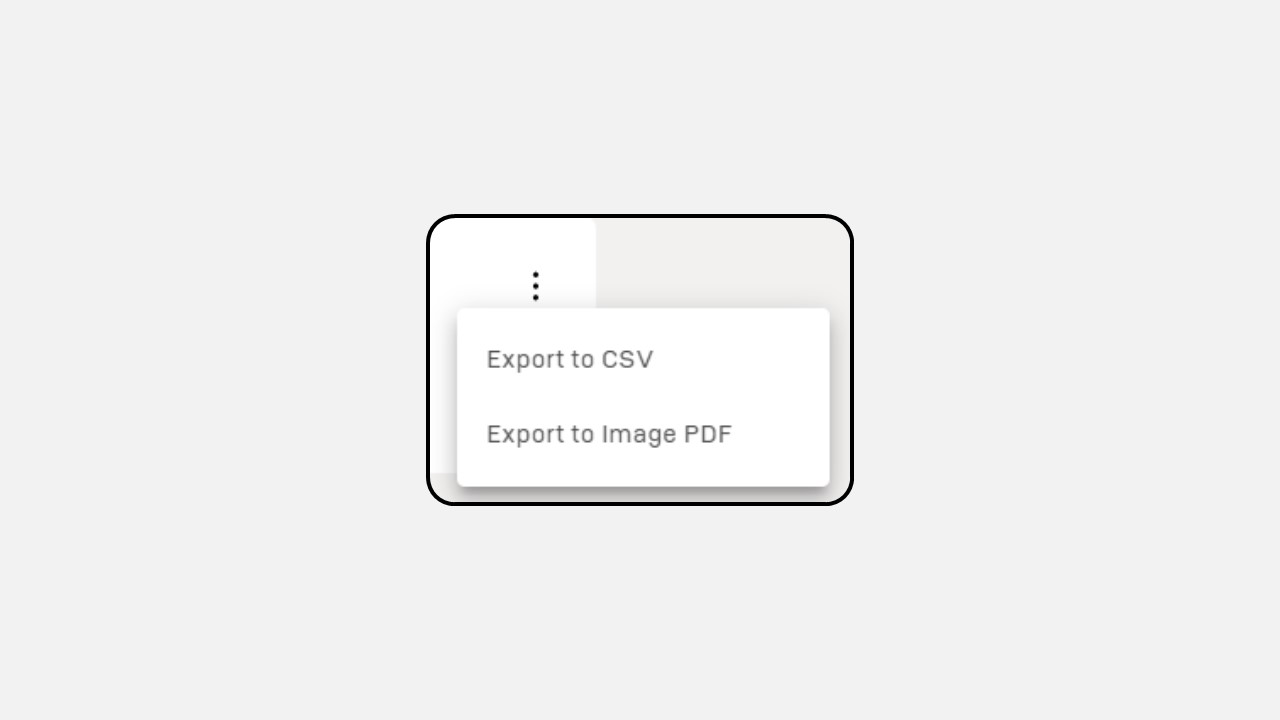
To retrieve your survey data you can click the three dots button, then select Export to CSV or Export to Image PDF.
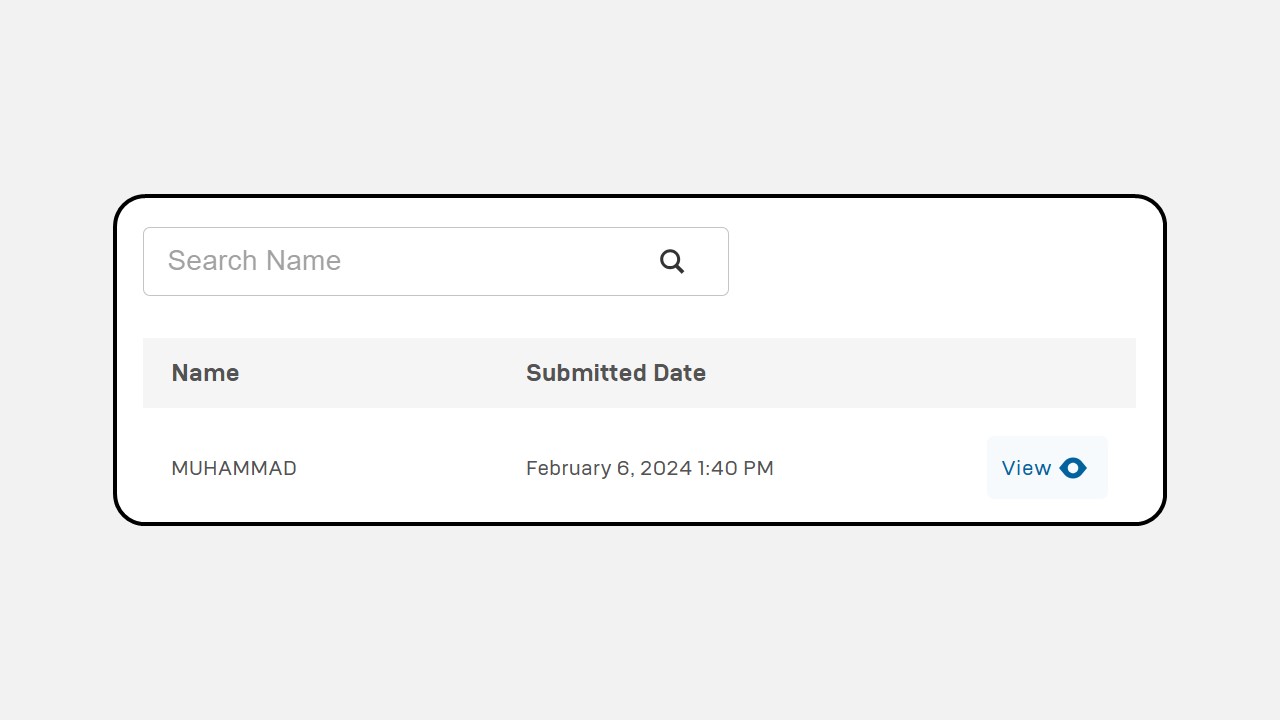
You can also view data reports individually.
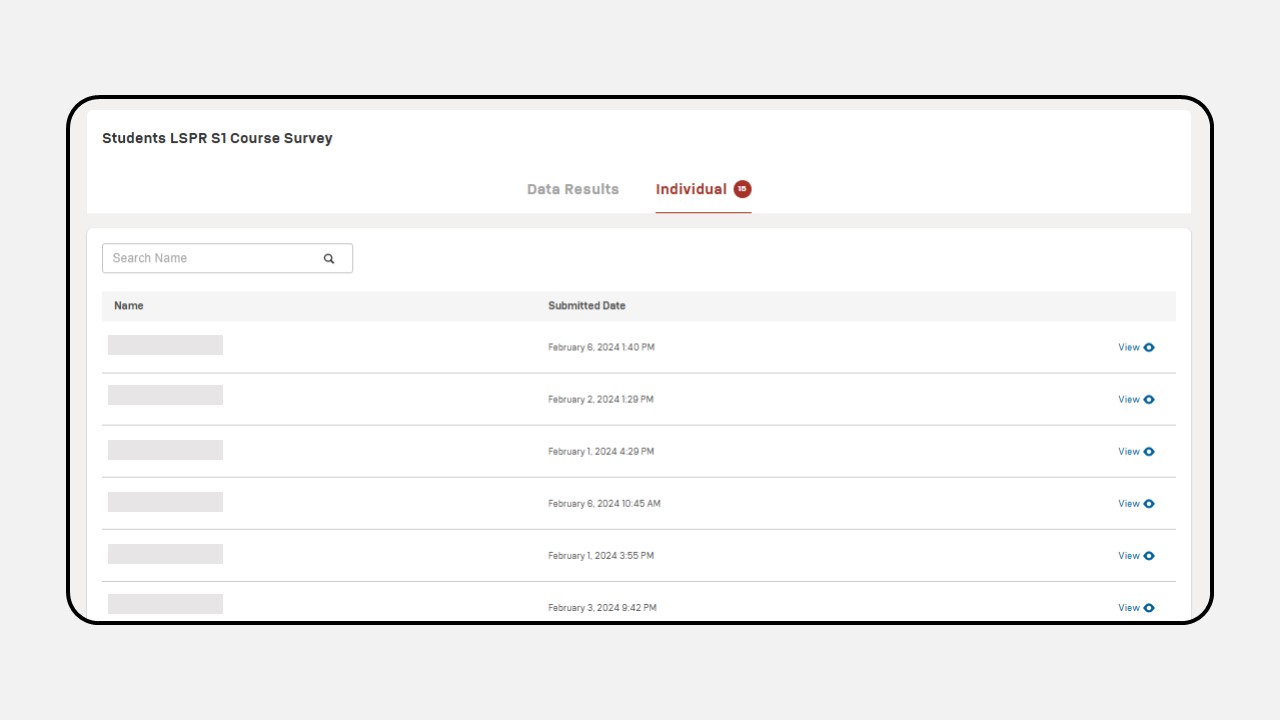
Click the “View” button to view the data individually.
A detailed report will appear as shown
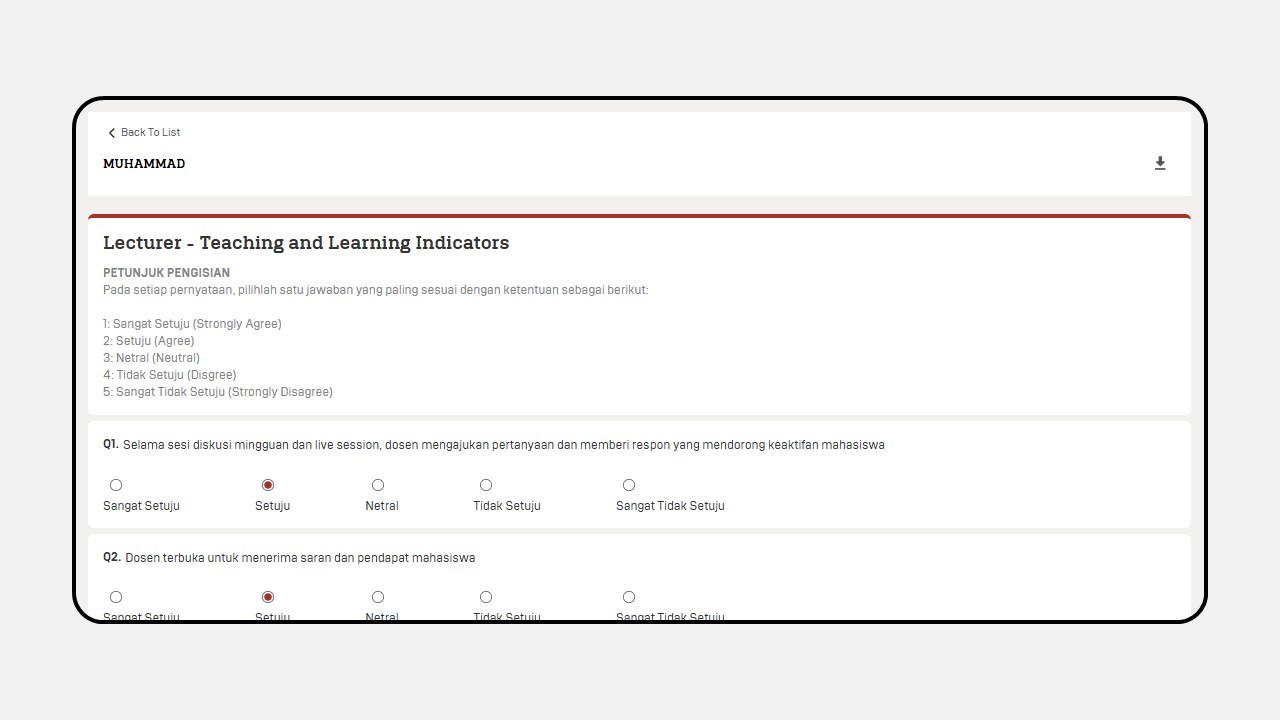
To download individual survey data, click the Download Icon.