Profiling
Profiling Listing
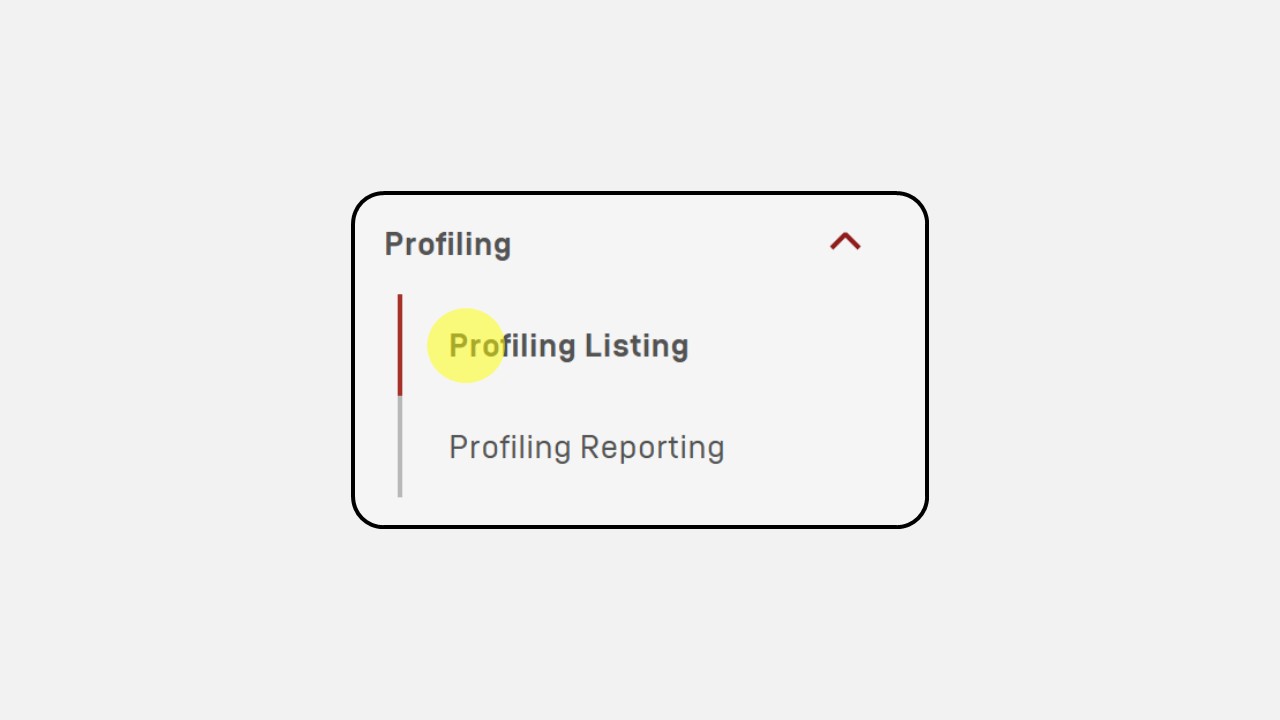
Click the Profiling Listing menu
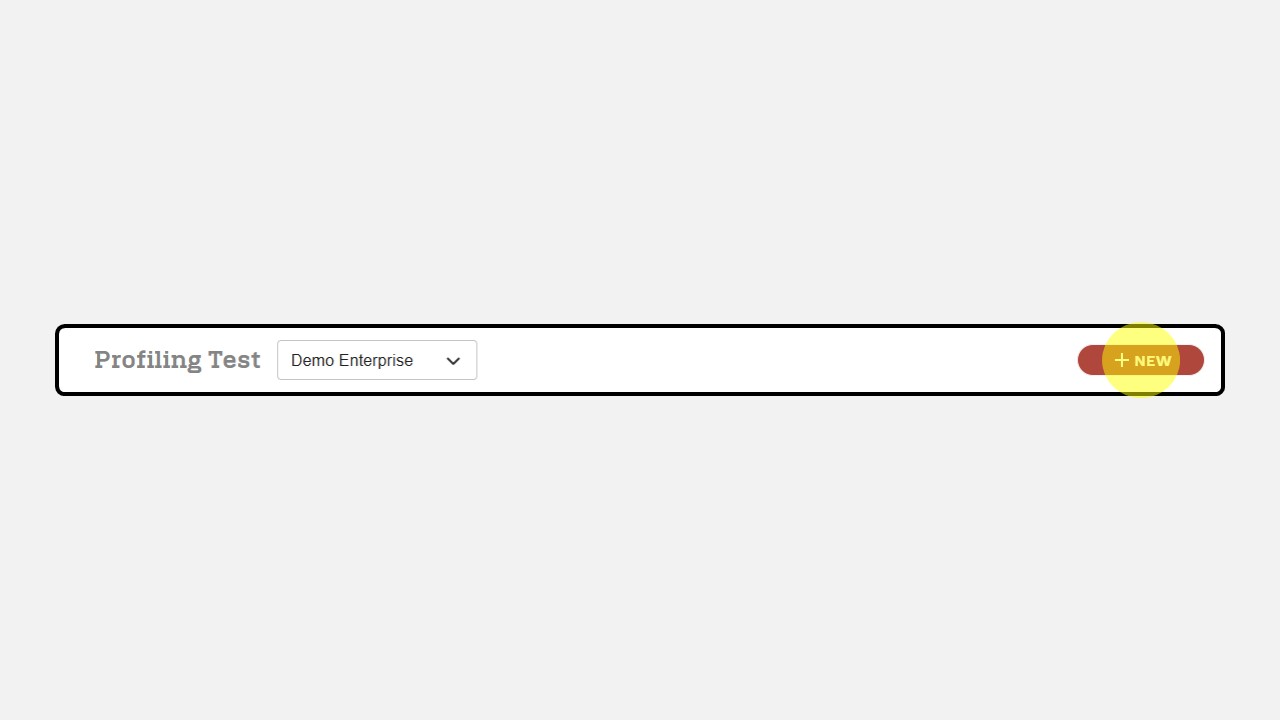
Click the +New button
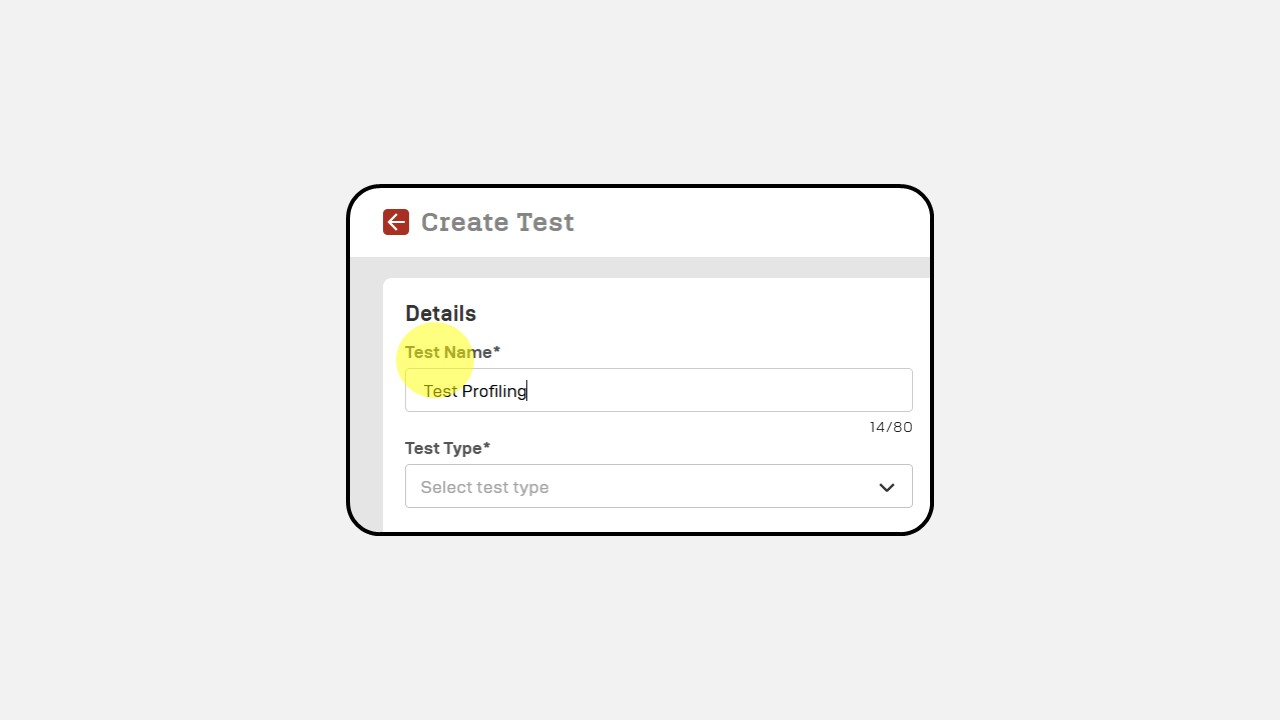
Fill the Test Name
Select the Test Type
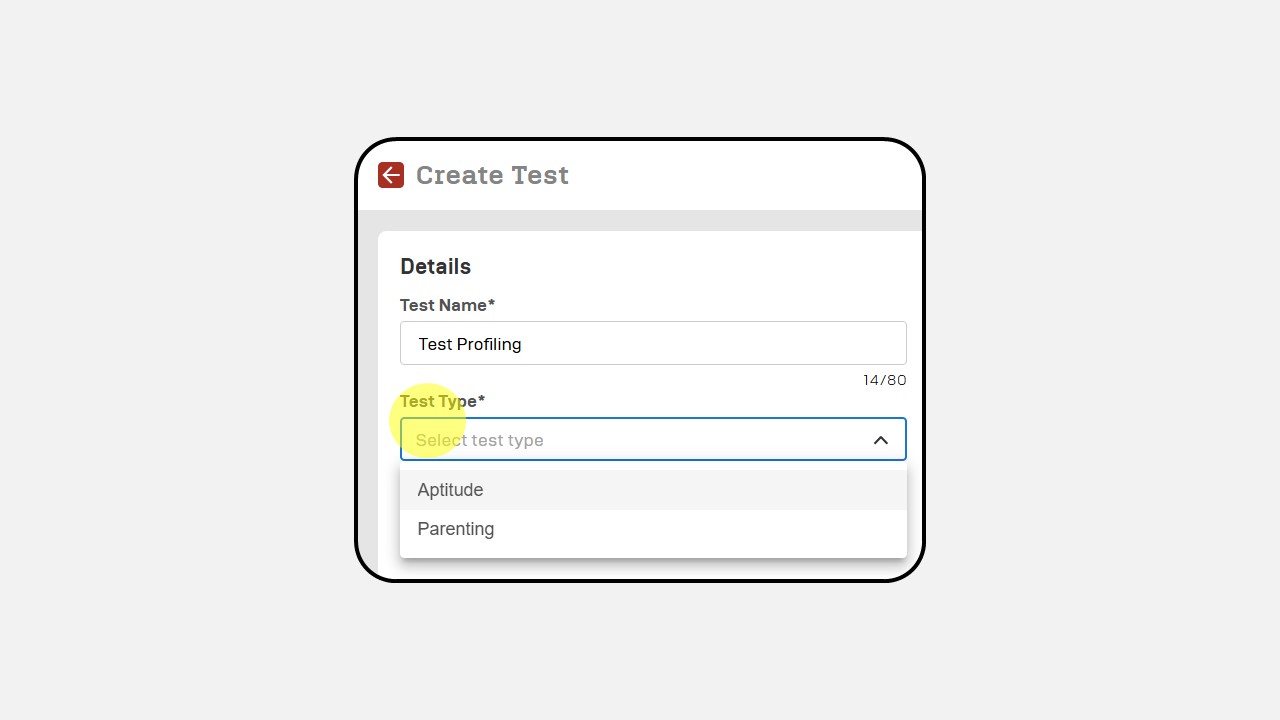
Complete the description
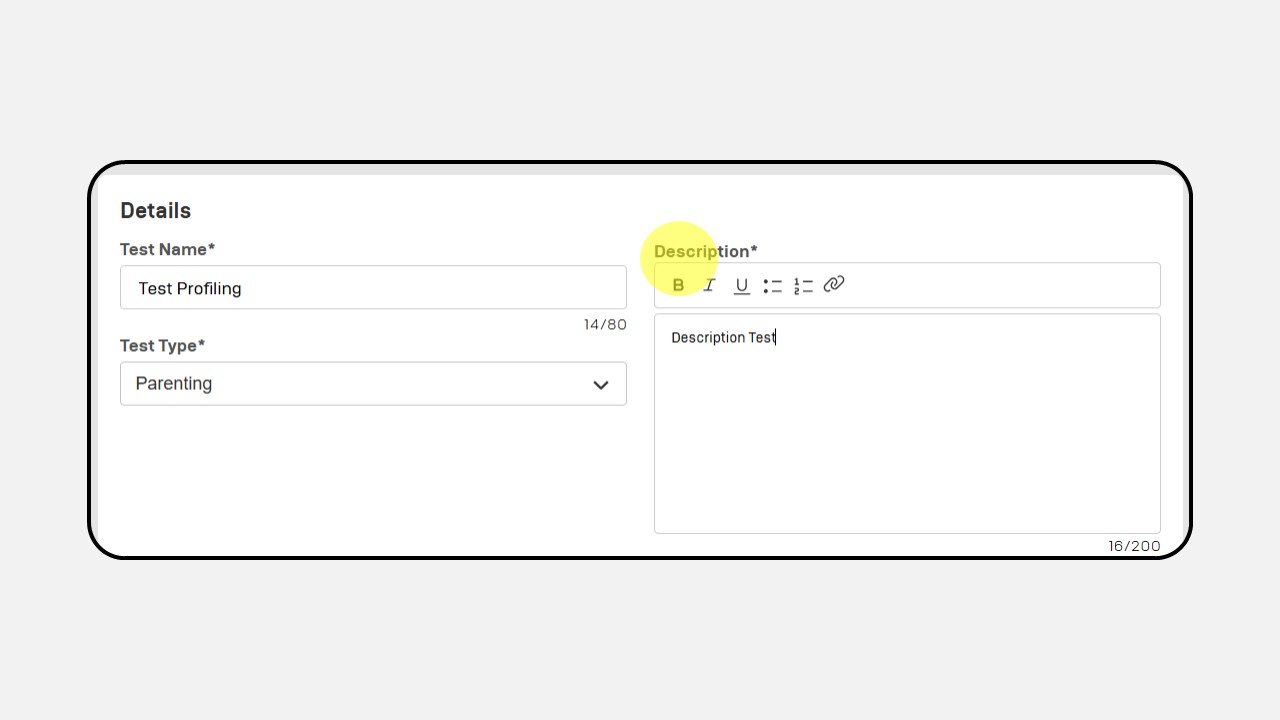
Then click Next, and a screen like the following image will appear
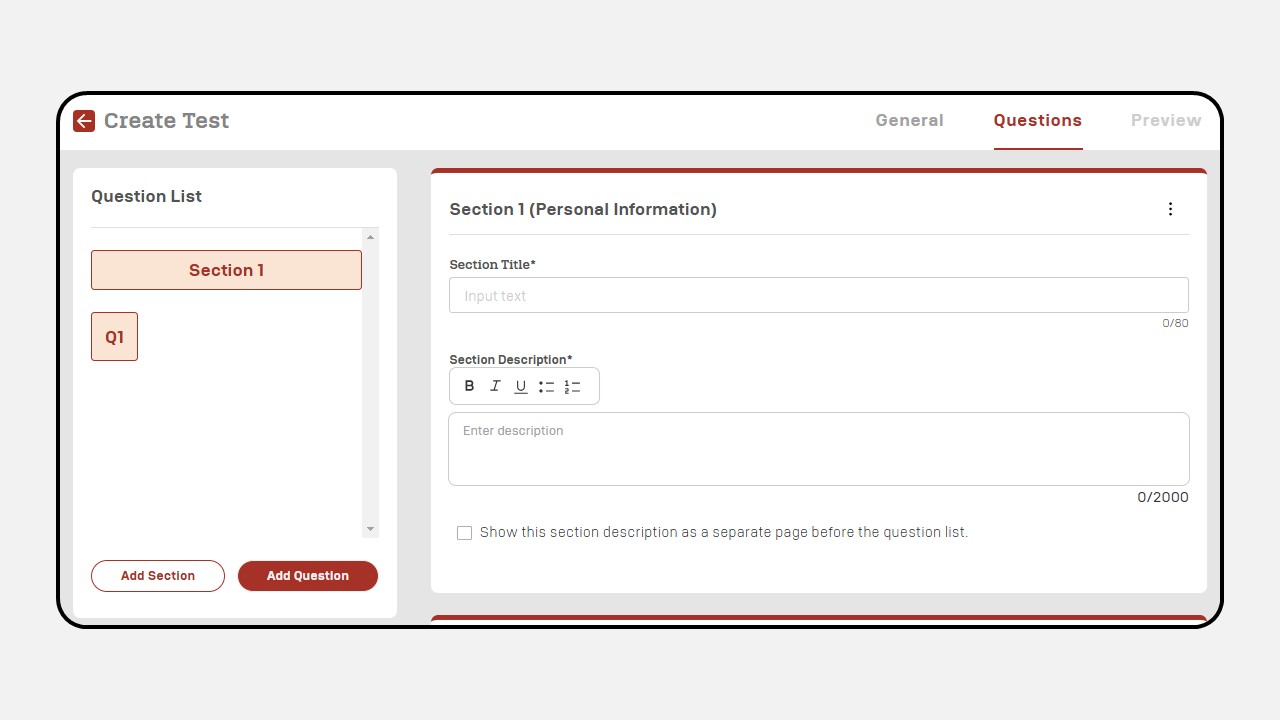
Fill the Section Title & Section Description
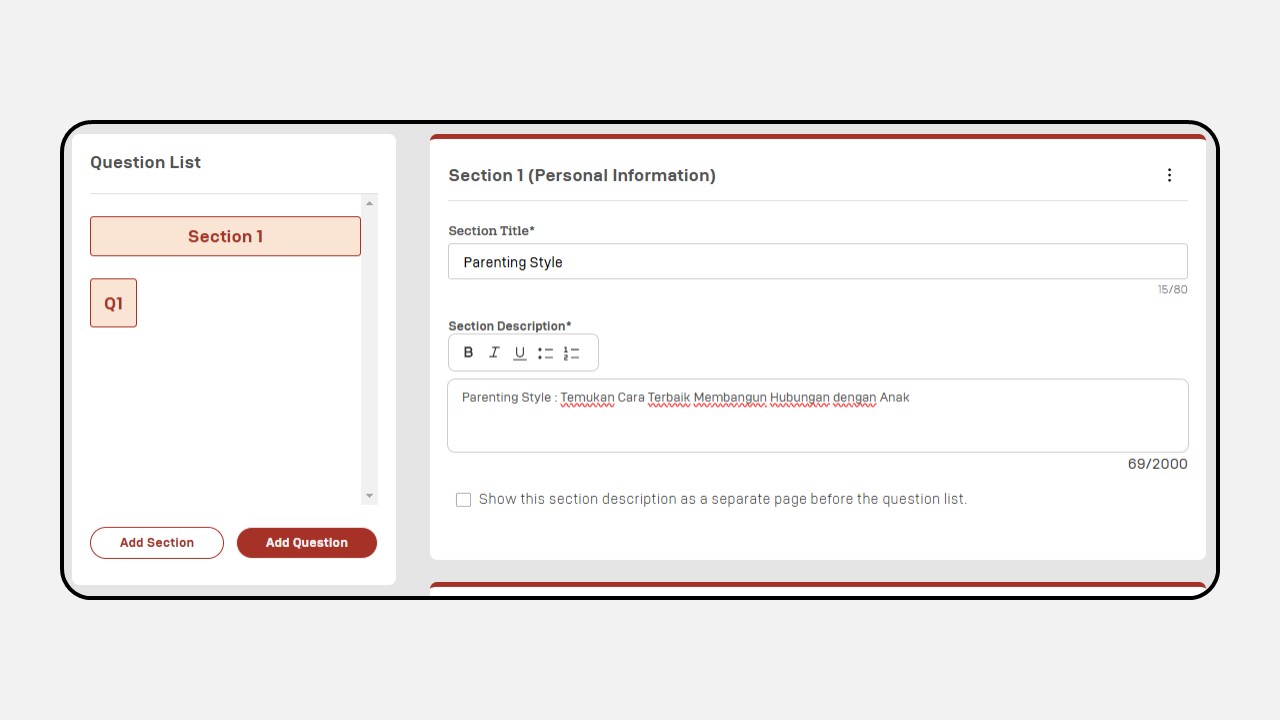
Add your survey questions
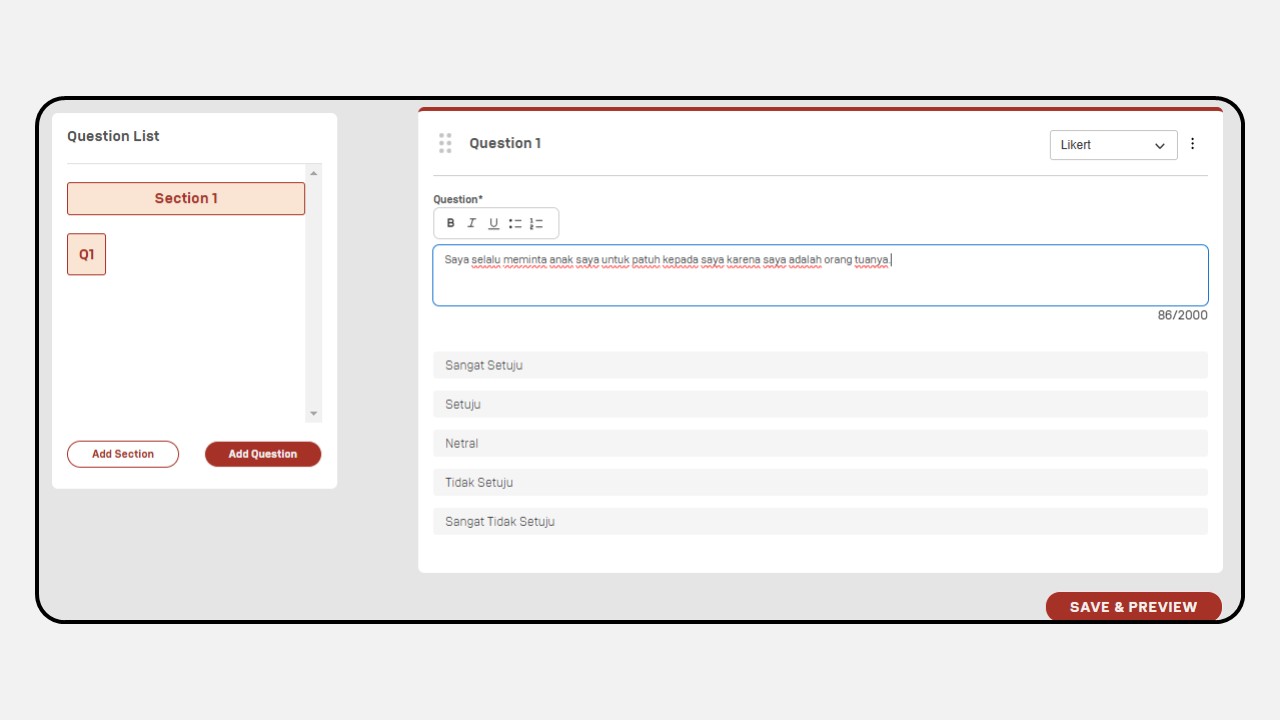
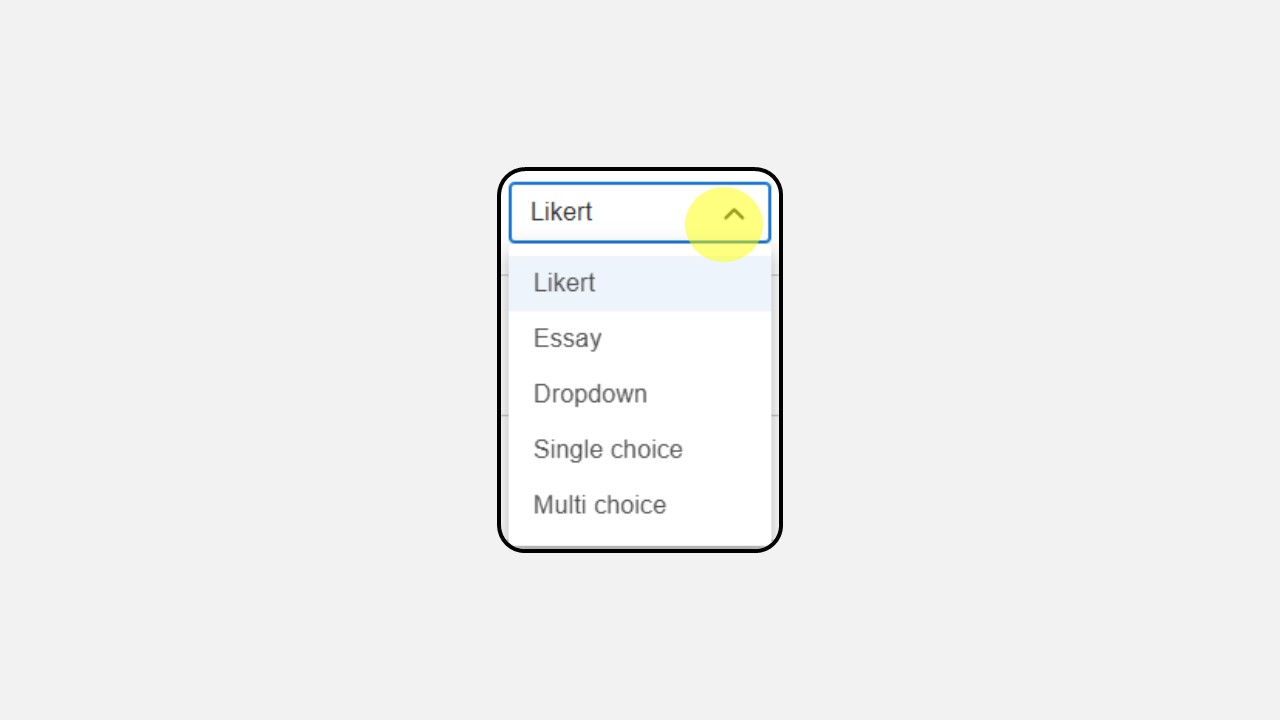
Then select the type of question you want (Likert, Essay, Dropdown, Single Choice atau Multi Choice)
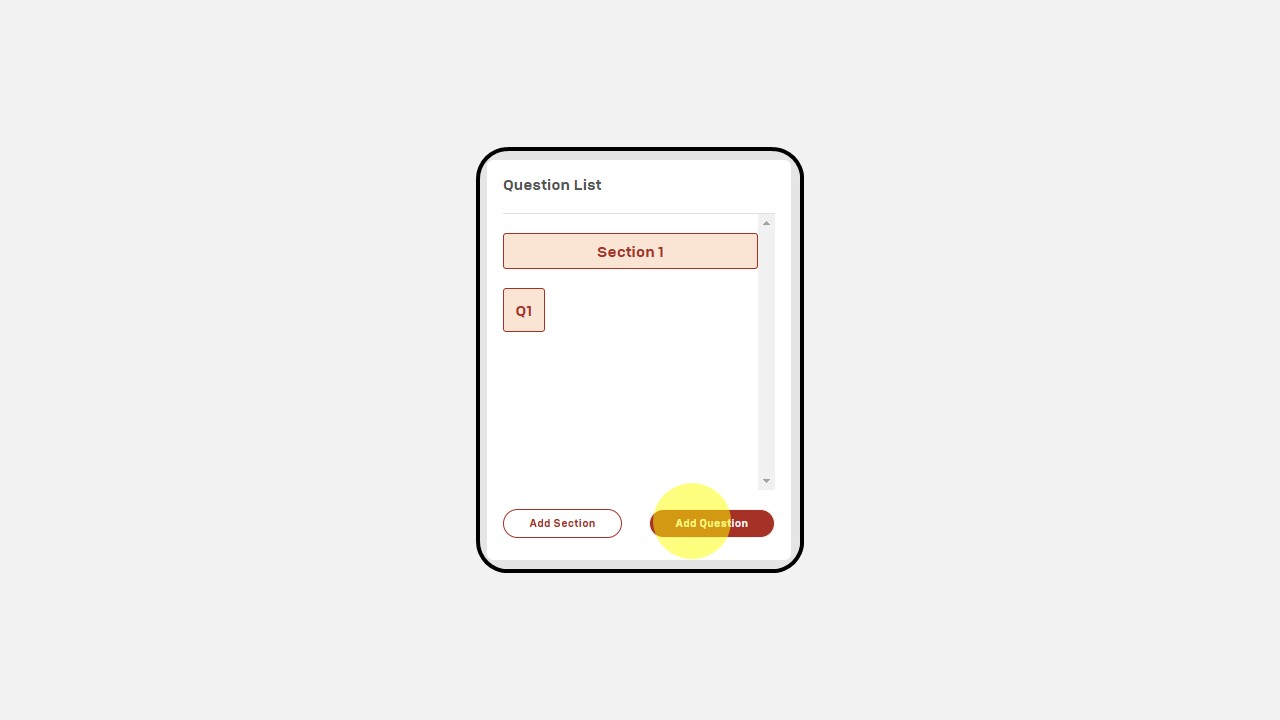
To add a new section, click the Add Section button or if you want to add more questions to a section, click Add Question
Once completed, click Save & Preview
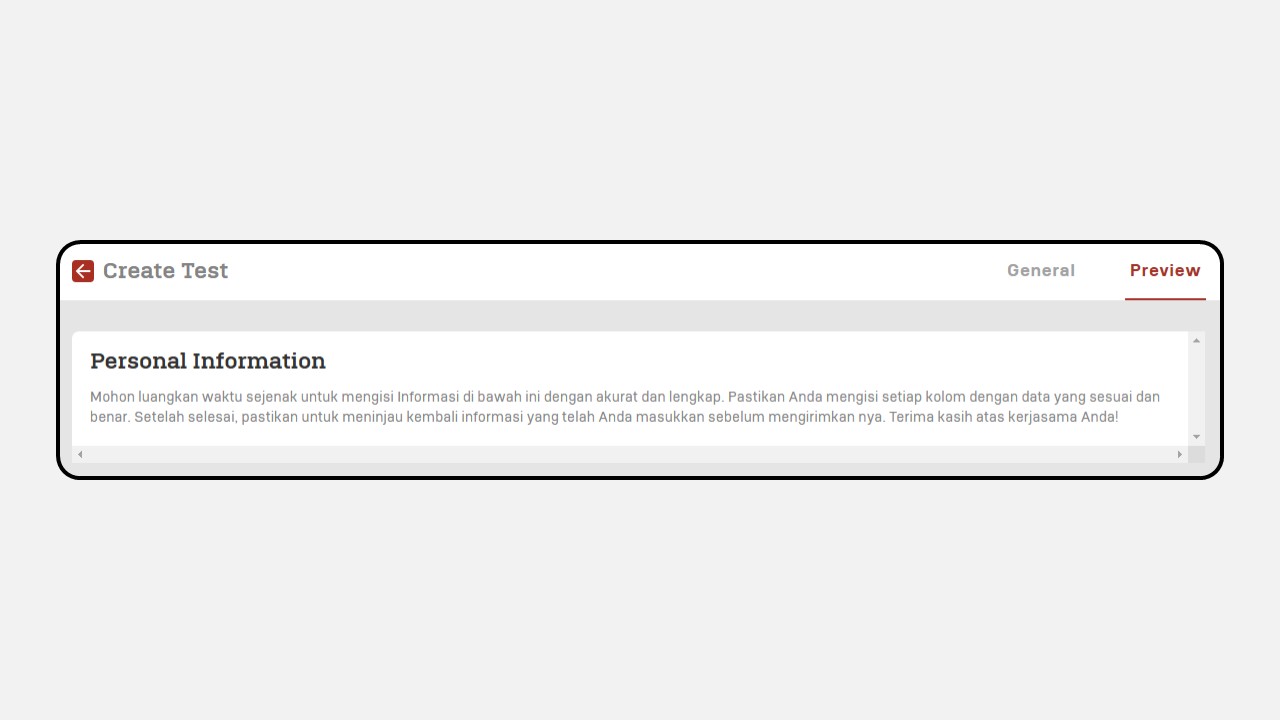
You can review the survey in Preview Mode
Profiling Reporting
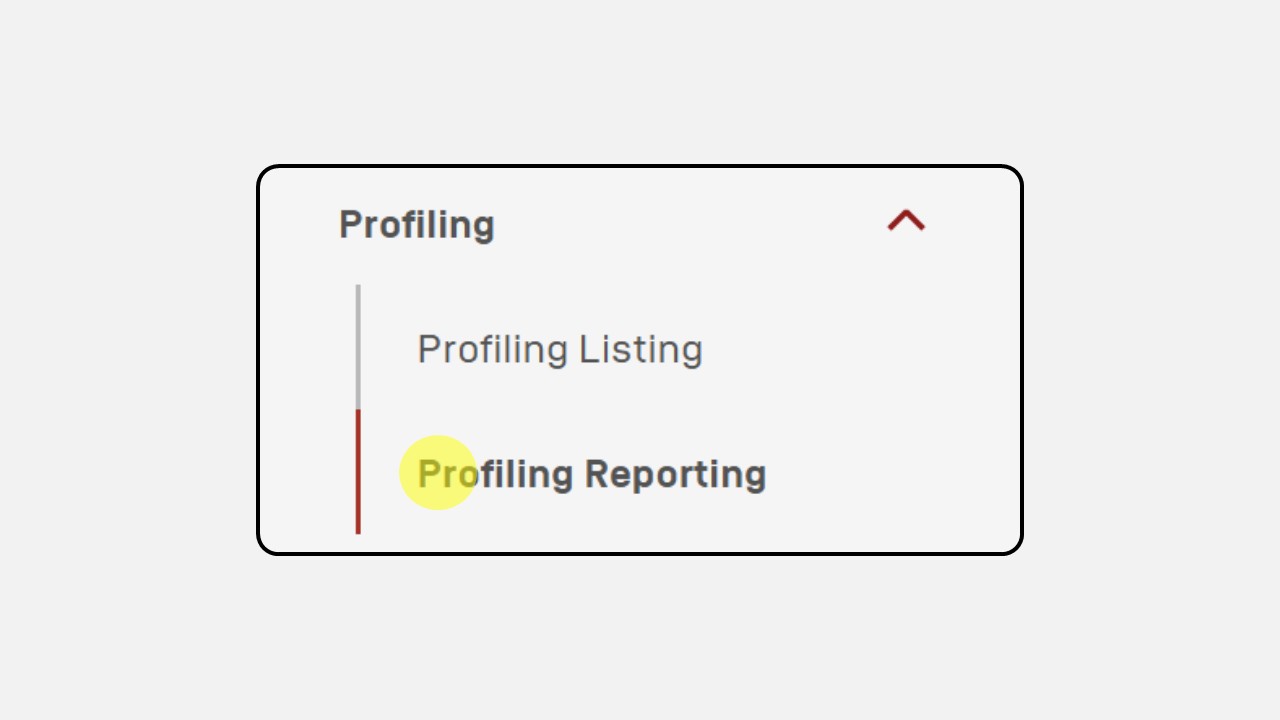
Click Profiling menu
Click the Profiling Reporting menu
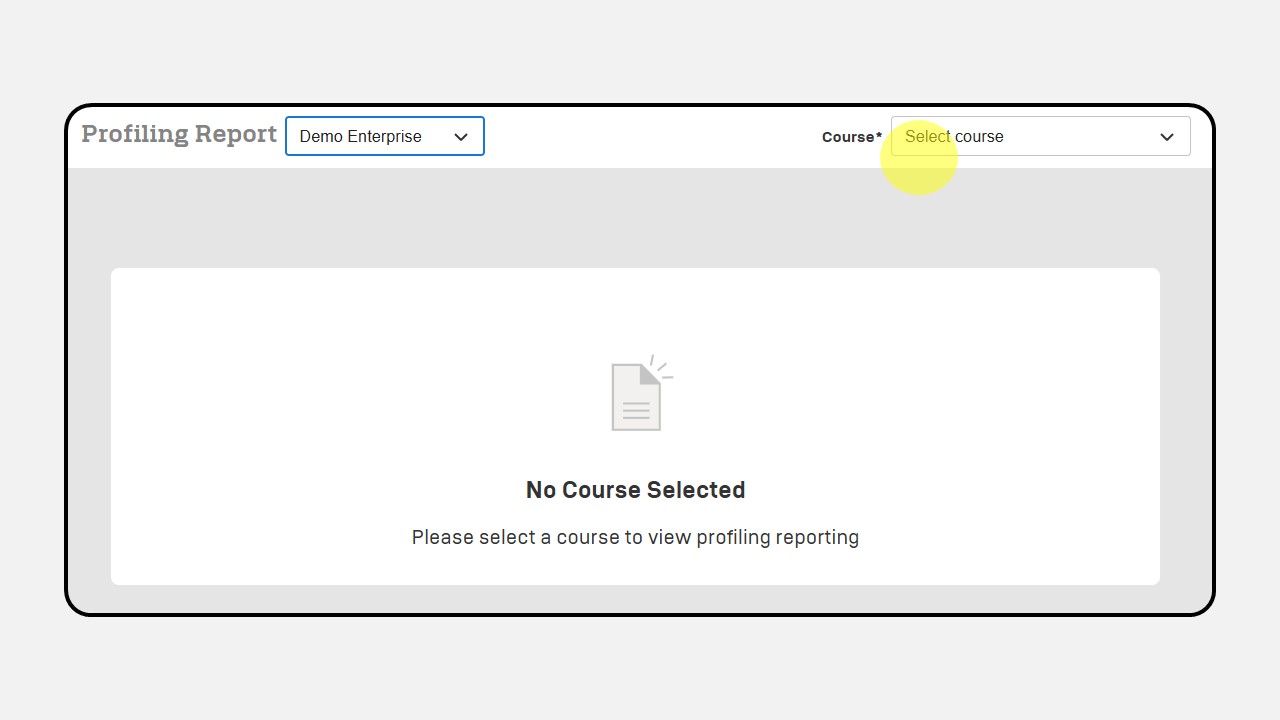
Search dan select the Test Name
There are 2 types of reports: 'Data Result' to display all user reports, and 'Individual' to display reports for each individual
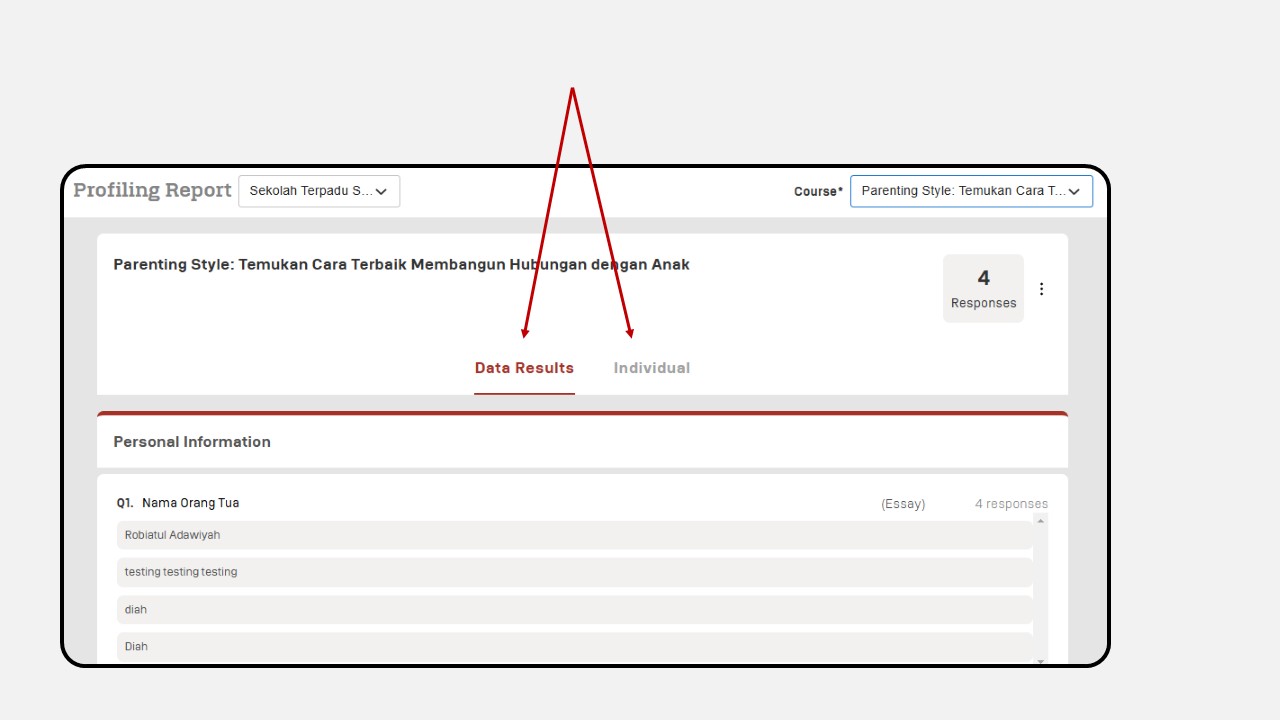
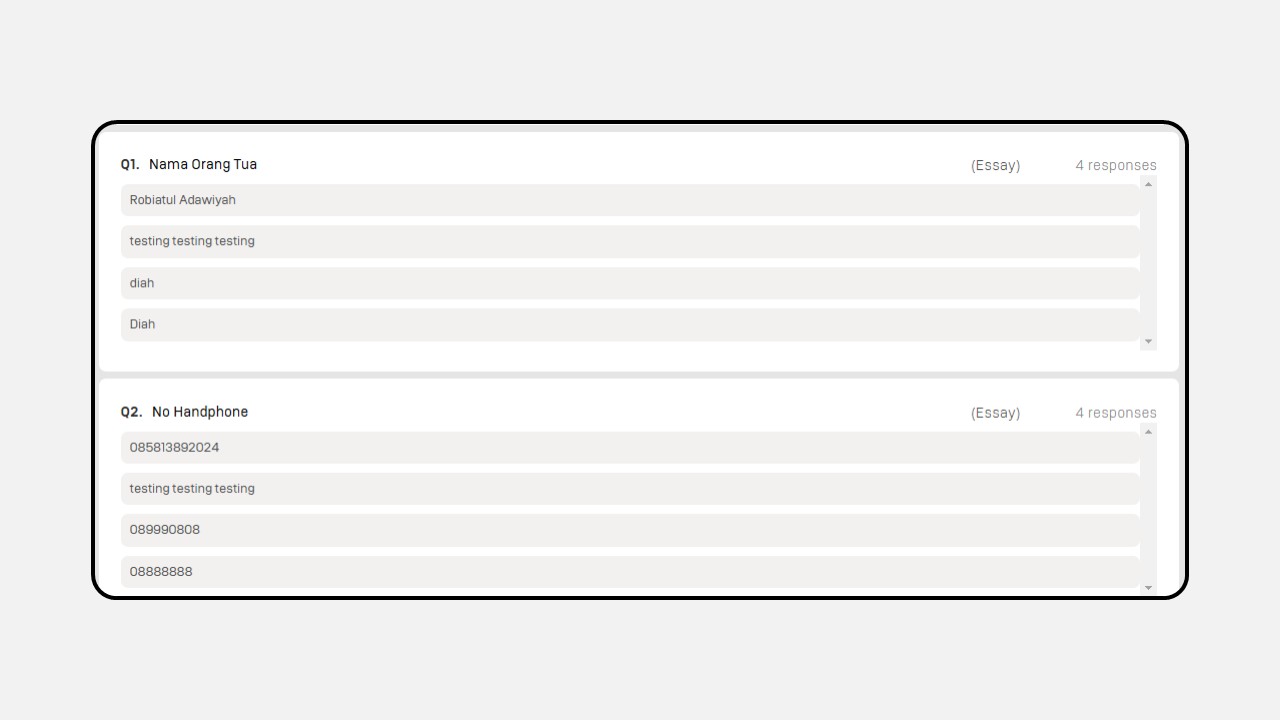
Display of all users' answers
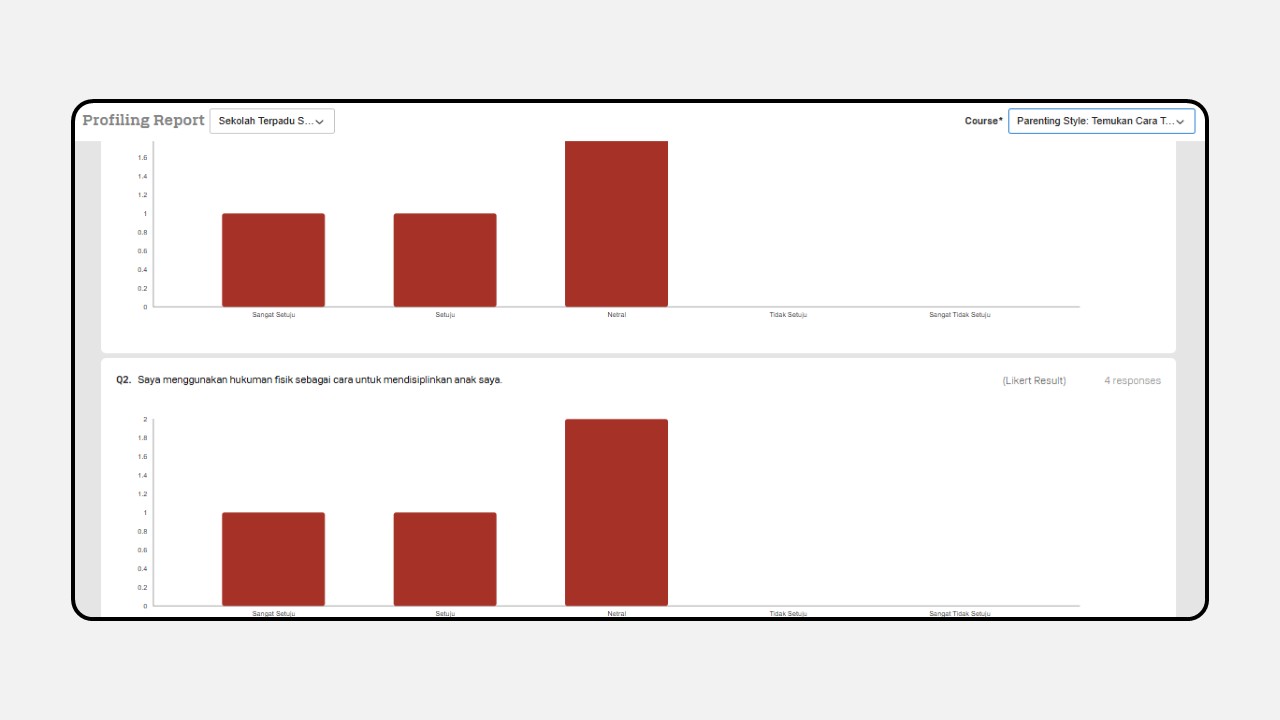
Display of all users' answers in diagram form
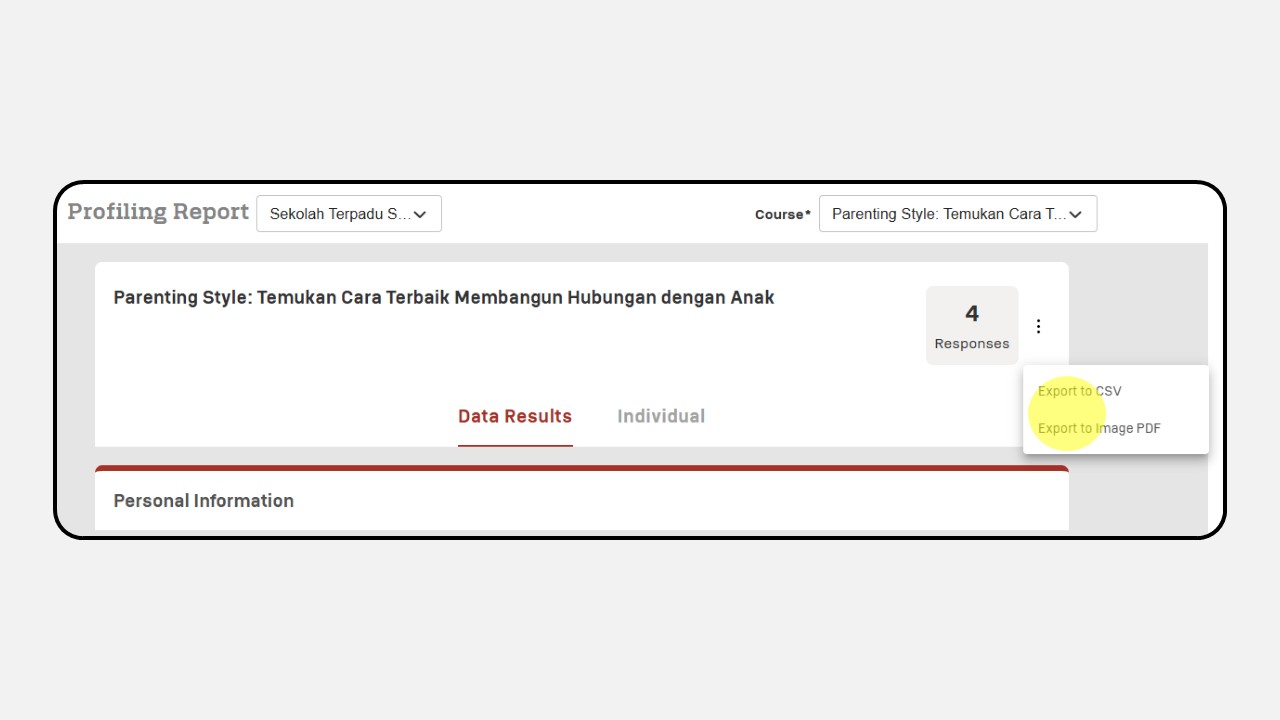
Click the three-dot button on the response count to download the report for all users in PDF/CSV format
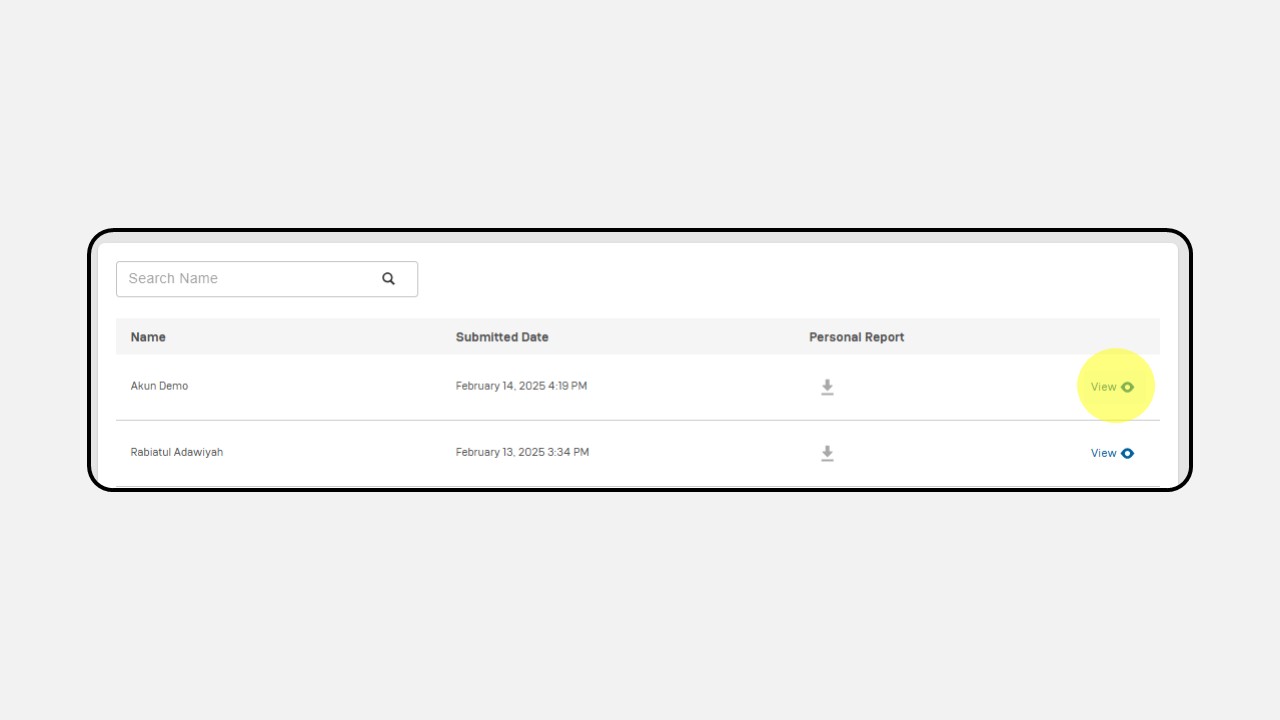
Individual Report View
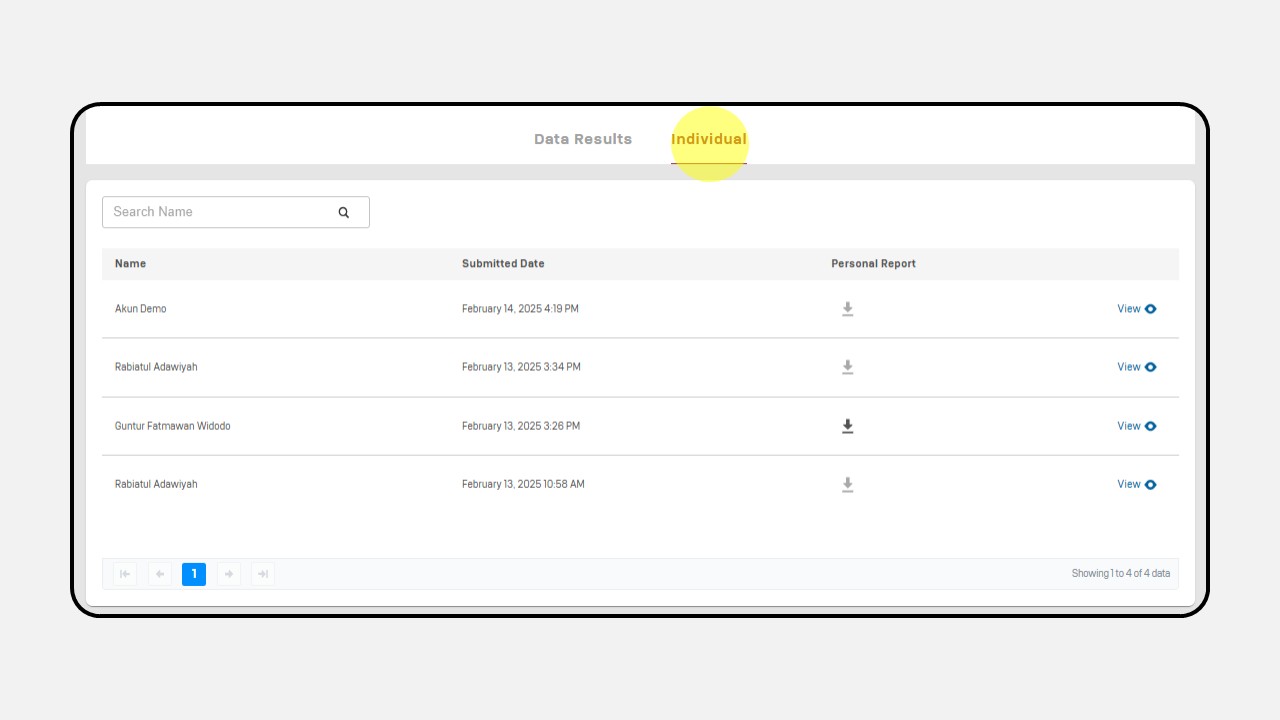
Click View on the user's name to see the individual report
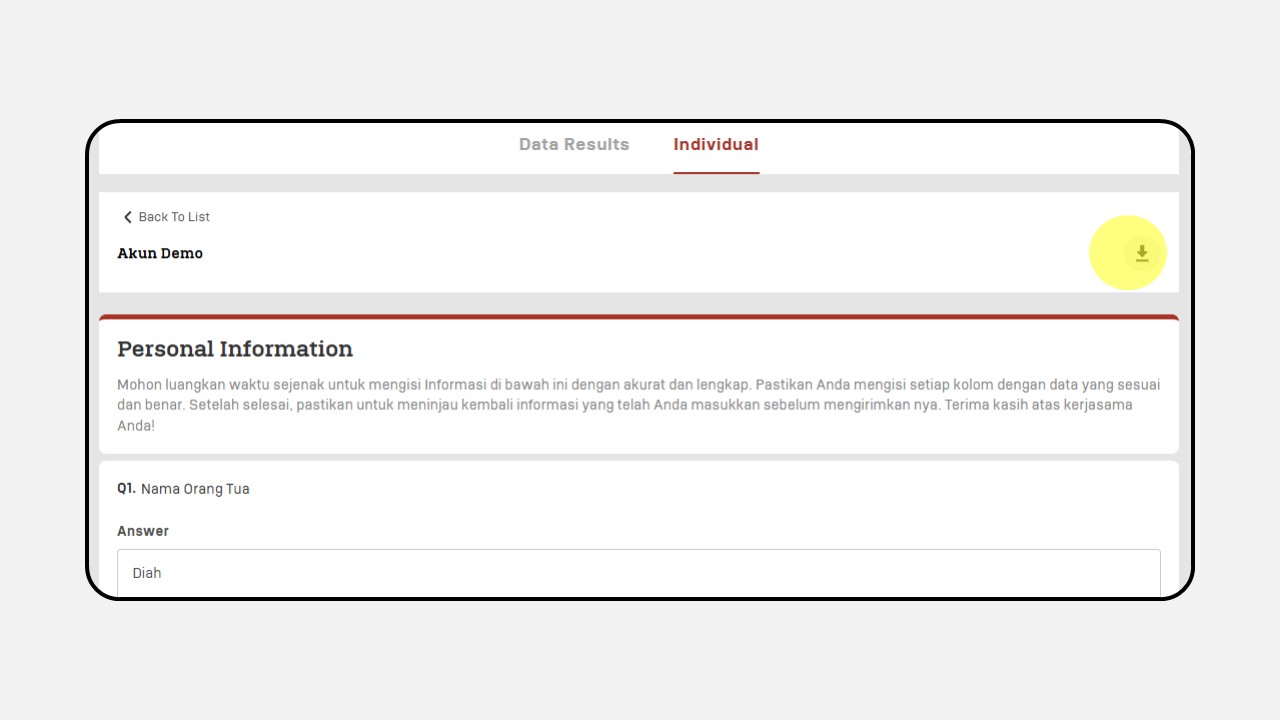
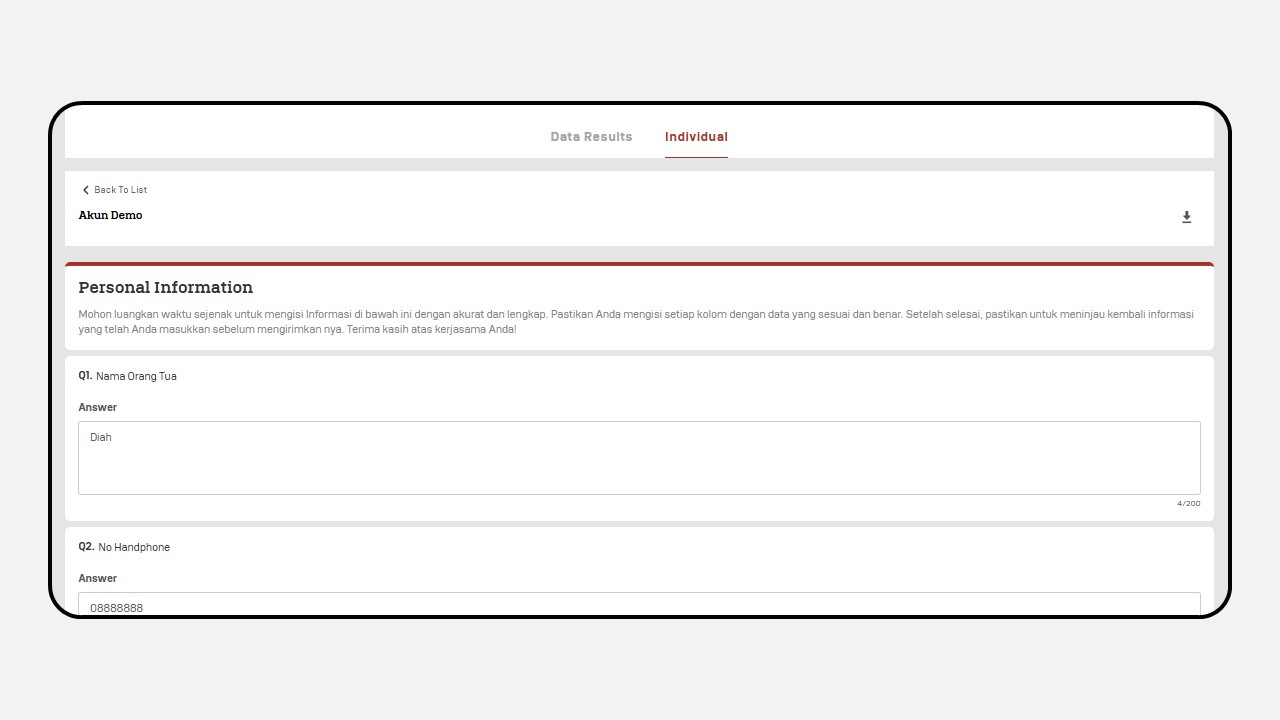
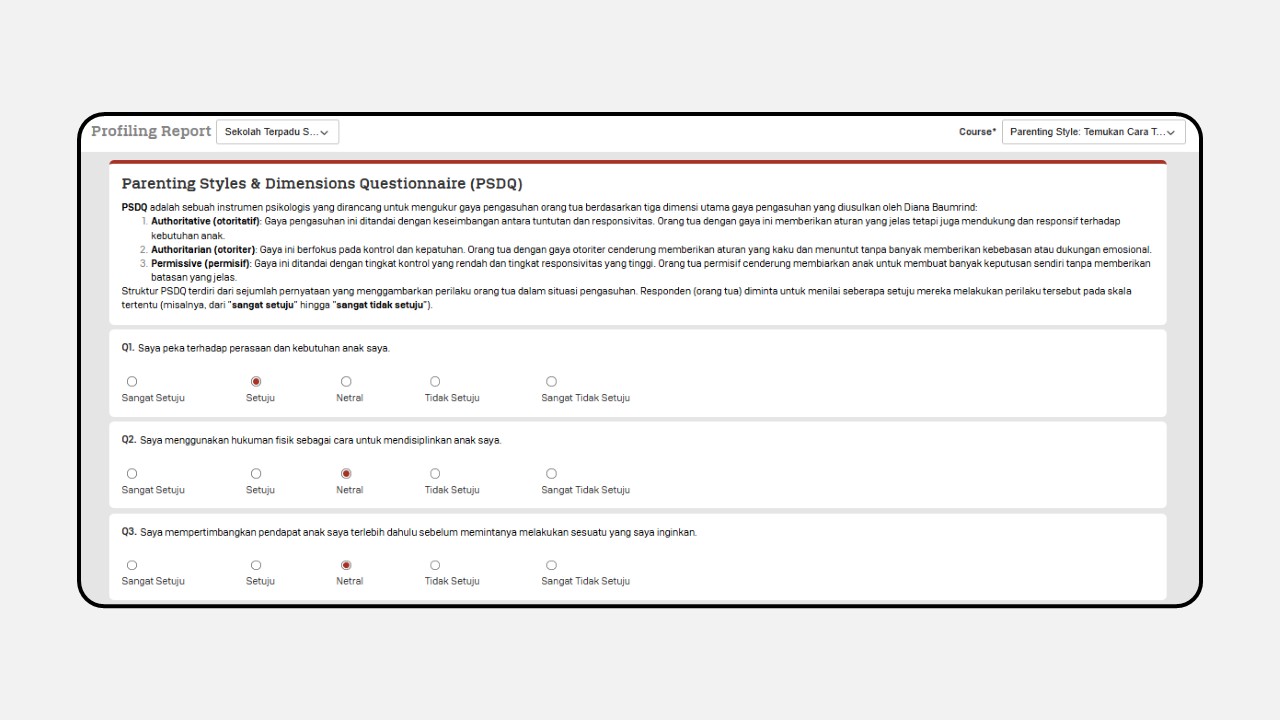
Then the user's response will apper
Click the download icon to download the report individually